Release Notes Changelog
Explore the features, reports, and improvements shipped in each version of the Datalink Distributor Finance System.
Version 2.5
Current ReleaseOctober 2026
8 updatesAdd and edit customers from the Quick Book app
In Sale → Quick Book → Devices tick Customer for a device so its booking man can add and edit customers on the phone (with their GPS location) and order for a new customer at once. Press Import Orders as usual: when phones sent customers, the new Customers tab opens with every line. Choose the Category and Sub-town, then Save or Delete each customer; the waiting orders are imported when none are left. Needs Quick Book 2.4.9.
Cash recovery from the Quick Book app
In Sale → Quick Book → Devices tick Allow Recovery for a device (it needs a booking man) and tick Outstanding when exporting to send the open invoices. The recovery man collects cash on the phone and exports it; in Accounts → Cash Receipt press Import to load it, one file at a time, with the recovery man selected for you. Amounts can still be changed, invoices removed or added, and nothing is received until you press Save.
A product can have several suppliers
In Setup → Product → Product the Supplier box now takes several suppliers. The product appears under each of them on Purchase Order, Purchase Invoice, Purchase Return and Transfer Out at the same price, and supplier filters on claims match any of them. Existing products keep the supplier they had.
Round purchase lines the way each supplier does
Setup → Product → Company has a new Line Rounding option for suppliers: 2 Decimals (the default) or Whole Rupee. Purchase Order, Purchase Invoice, Transfer In, Purchase Return and Transfer Out round each line's net including tax to it, so the figures match the supplier's bill. Tax is unchanged, and existing suppliers and saved documents stay as they are.
Share reports by WhatsApp or email
Reprint Invoice, Customer Ledger, Sales & Stock, Town Wise Sale, Sub Town Sale, Customer Sale, Product Sale and Customer Outstanding (company selected) have a Share button that sends the report PDF by email or WhatsApp. On the sales reports it replaces Email, which mails exactly as before; with several companies selected, WhatsApp goes to the first one. WhatsApp is free through the WhatsApp app, or automatic through the WhatsApp Business API set in System → Default Settings → WHATSAPP.
Stop selling stock some days before it expires
System → Settings → OTHER has a new Stock Expiry Days setting, 0 to 180. Each time the application starts, any batch that expires within that many days is marked unsaleable. At the default of 0 only stock that has already expired is affected, as before. Lowering the number does not make stock saleable again.
Copy a user role to start a new one
Setup → Other → User Role has a new Copy button (F6) that adds a role carrying every setting of the selected one — rights, controls, web rights, web controls and data access — so it only needs a name and Save. Users are not copied.
Move last month’s invoice to the right customer
Administration → Invoice Correction now opens an invoice from the previous month with only Customer editable: the amount moves from the old customer to the new one, dated today, while lines and stock stay as posted. Older invoices, and any with a receipt or return, are still refused.
September 2026
40 updatesQuick Book orders show when they were taken
Transaction → Quick Book has a new ORDER DATE column showing the date and time the booking man saved each order on the handset (Quick Book 2.4.3 and later; older handsets show the date only).
Short-expiry stock asks before it is sold
Transaction → Sale Invoice and Sale Invoice (Batch) now ask before adding a line whose batch expires within 6 months (or has expired), and Quick Book asks once on Save, listing the short products. No is the default.
Batch Reprint: correct the expiry too
Reprint → Batch Reprint now has an editable EXPIRY column beside Batch, so you can correct a line's expiry (dd-mm-yyyy), its batch, or both before printing. As with the batch, it changes the printed invoice only; nothing is saved.
Customer GST Detail
Reports → Customer Ledger has a new GST Detail button in place of Tax Summary, showing the customer's Taxable Amount, GST and Total month by month, in line with the GST Report. Tax Detail still gives advance tax by month. On DFS Web, grant GST Detail again to roles that had Tax Summary.
P/L closing stock at what you paid
Reports → Profit & Loss now values Closing Stock at each batch's purchase price, with free bonus units at zero, so the Statement's gross profit no longer counts bonus stock as profit and lines up with Invoice wise. Expect a lower figure where you hold bonus stock; month closing saves stock the same way.
Any Windows date format
DFS no longer refuses to start unless Windows is set to M/d/yyyy, so the computer can keep the date format its user prefers. Dates are still typed as dd-MM-yyyy in Purchase Invoice, Customer Setup and every other screen, and are stored the same whatever the Windows setting.
Keep a booking man's phone and email
Setups → Booking Man has PHONE and EMAIL columns, so the office can reach the person a sale is credited to without leaving DFS. Both are optional, and an address that is not shaped like one is refused rather than stored. DFS Web records the same two against a sales man.
Record the Distributor Sale License
System → Settings → Profile has a DSL box for the distributor's sale license number, kept beside NTN and STRN and carried to every report through the shared report header. DFS Web records it on the same screen.
A receipt against invoices cannot exceed what they owe
Transaction → Accounts → Cash Receiving with Inv From selected now refuses a payment larger than the invoices in the range owe, and says how much that is, instead of quietly holding the difference as advance cash on a line nobody asked for. Bills already in credit no longer take part, which is what let that line appear even when the payment matched the bill. With Customer selected an advance payment is still taken: the screen names how much of it settles no bill and asks before adding it.
Accounts Report shows the bank
Reports → Accounts Report has a Bank filter for Summary, Detail and Expense, and Summary, Detail and Expense print the bank each amount went through, so every account entry and its bank can be read in one report.
Record each investor's capital
A new Capital nature in Accounts → Accounts Head gives each investor a head with their profit share; Accounts → Accounts Transaction records an Investment, Withdrawal or Opening Balance, and the Capital button on Accounts Report prints each investor's capital, share of profit and drawings.
Stock Correction asks why the stock is being corrected
On Transaction → Stock Correction, Save now needs Remarks: one reason for the whole save. It is recorded in the Audit Trail against each batch saved, under Stock Detail with the field Remarks, even when Stock Detail changes are switched off.
Moving an invoice to another customer keeps their balance right
On Administration → Bill Correction, picking a different customer charged the invoice from the previous customer’s balance, so the new customer’s balance and every later row of their ledger came out wrong. The new customer is now charged from their own balance, and it is their credit limit that is checked.
Emailing the Sale Register no longer shows an error
On Reports → Customer Sale, pressing Email with the Sale Register on screen stopped with Object reference not set to an instance of an object. It now emails the register like the other reports — one attachment per company group plus one to the company contacts, or a single file when Commulative Email is ticked.
Receipt Voucher can show one receipt by its number
Reports → Accounts → Receipt Voucher has a Voucher box. Enter a receipt number and Summary, Customer wise and Invoice wise all show only that receipt — whatever the date range says, so a receipt from an earlier month is found without changing the dates. Recovery man, booking man and town still apply.
Bank and Party Setup no longer undo postings made while open
Setup → Accounts → Bank Account and Setup → Other → Other Party wrote back the balance they loaded when a row was saved, so a receipt, payment or party transaction posted while the screen was open was reversed by a Balance Correction. Saving such a row is now refused with has been modified by another process. Please reload!, the same check Customer and Stock Correction already make.
Sale Register: every invoice with its lines, returns and net
Reports → Customer Sale → Sale Register prints each invoice in the period under a header of invoice, customer, town, booking man and recovery man, then its lines with Rate, Disc, Tax, Sale Value, Return Value and Net Sale, and a total carrying the invoice’s remarks. Returns come from the invoice itself, and every filter on the screen applies.
A sale return posted in error can be withdrawn
Transaction → Cancel Sale Return takes back a return that should never have been posted. Enter the Sr#, check what came back, give a reason, and the goods come off the batch, the credit comes off the customer and the invoice’s returned quantity and taxes go back to what they were — all of it together, or none of it. Nothing is deleted: the return keeps its number and its record of what was posted, and loses only its amounts, so it cannot be counted twice or cancelled again. The reason is written onto the customer ledger, so the withdrawal still reads months later. It is refused outright, with the reason on screen, where the stock has since been sold again, the credit has already been refunded in cash, or the return falls in a closed month.
Help opens straight away, and checks for updates when you ask
Help checked for a new version every time it opened, so each visit waited on the internet whether you wanted a check or not. The button now reads Check for Updates — press it when you want to look, and if a newer version is there it turns into Update with the version beside it, ready to install. A copy running behind its database is still updated on its own, exactly as before.
A correction can no longer leave a bill at zero
On Invoice Correction, zeroing one line is still how a line is taken off a correction, but the invoice as a whole must now keep some value — Save is refused when Receivable comes to nothing. Every line zeroed, bonus-only lines and a 100% net discount were all saving a live invoice worth nothing, which took the amount off the customer and put the stock back without any of the record a cancellation leaves. Use Invoice Return for goods coming back, or Invoice Writeoff to clear the balance.
Quickbook 2.4.1 for the handsets
Your booking men can update from Transaction → Quick Book → EXPORT → Download Booking App. The product file now carries each product’s stock — a snapshot taken when you press Export Data, so export more often if your men rely on it. An order is keyed as one list rather than a dialog per product: every product is a row showing its stock, what that customer last paid and the catalogue prices, and Finalize reopens the list so a long order is built one search at a time. What arrives in DFS is unchanged.
Quick Book records the visits that produced no order
Transaction → Quick Book has a new NO ORDER tab listing the shops a booking man visited and came away from empty, with the reason he gave and a LOCATION link that opens where he was standing. The records arrive with the orders through Import Orders, and the app will not save one without a position fix. Filter by date, booking man, customer or reason.
A corrected invoice can print as it saves
Administration → Bill Correction showed a Printing box that did nothing, so the one screen that makes the customer's printed copy wrong was the one screen that could not replace it — you had to go to Reprint → Sale Invoice and key the number again. The box now works: it starts from the Printing On setting in Settings, F8 turns it on or off for the invoice in hand, and the corrected invoice goes to the printer the moment it is saved, on the layout its customer's licence and companies call for. The correction is saved first and printed after, so an invoice that saves stays saved even if the printer is off. Note: printing here marks the invoice as printed, so a later reprint run with Exclude Duplicate ticked will skip it.
WHT now behaves the same whichever way you change it
On Sale Invoice, Batch Sale Invoice and Quick Book, the WHT box behaved differently depending on how it was changed, and a change made with the mouse was never forgotten — it silently altered every invoice for the rest of the session. Worse, unticking with the mouse and then re-ticking with F4 left the box ticked while the rate was forced to 0, so the invoice claimed to withhold and withheld nothing. Now F4 changes withholding for the invoice in hand only, and clicking the box itself holds the change for every invoice on that screen until you tick it back or close it — DFS tells you which of the two you have just done. Ticking it back hands the decision to the customer again rather than forcing withholding onto an exempt one, and the rate now always matches the box. Note: on Quick Book, F4 was previously Add; adding a line is now the numpad +, the same key as the other two screens.
Outstanding at a keystroke while invoicing
F7 on Sale → Sale Invoice and Batch Sale Invoice now shows what the selected customer already owes, over the invoice you are building and without disturbing it. Three tabs: Customer for every outstanding bill, Company for the company chosen in the header, and Product for the product highlighted in the list — each with the bill’s age in days, oldest first, and its own total. It is read only.
Company Credit is now product wise
Company Credit on Reports → Customer Outstanding now totals what is still owed against each product — one row per product with its company and group beside it — instead of one row per customer per company. It answers what is owed against each product; use Invoice Credit for who owes it. R.man Credit is now one row per recovery man, their whole book on a single line rather than split out by company.
A discount on top of a negotiated rate
Transaction → Sale Invoice (Batch) can now take a rate agreed for a product and a percentage off that rate, instead of one discount off the trade price: trade price 200, a flat rate of 100 and 15% sells at 85, and the invoice prints 100 at 15% — the deal as it was struck — rather than the single figure it works out to. Mark a product Flat Sale on Setup → Product to offer it there; every product starts unmarked and nothing changes anywhere until one is. Invoice Correction shows the same two boxes, so a flat-rate line can be corrected as it was sold rather than through the figure it works out to. Tax, claims, returns and every report are unchanged, because the line still stores one discount off trade price.
Ageing now counts the bills, and shows on the customer ledger
The Ageing report on Reports → Customer Outstanding now counts the bills, not just the money: each band shows how many bills its amount is spread over, so 1000 (3) is three bills totalling a thousand, with a Bills column for the total. A large figure sitting on one bill reads differently from the same spread over twenty. The same ageing now also prints above Reports → Customer Ledger for whoever's ledger you are reading, measured up to the To date. It counts every bill still open on that date, including ones raised before the From date, so it will not usually match the ledger balance — the help page explains why.
Approving one of a supplier's claims no longer fails
On Transaction → Claims → Claim Adjustment, filling in the approved amount and reference for one claim and saving reported an object reference error and posted nothing, whenever the supplier had other pending claims still blank. Blank rows are skipped as the screen always intended, so you can approve claims one at a time as the supplier settles them.
A customer who is owed money can be paid back
Transaction → Accounts → Cash Refund shows what each of a customer's bills is in credit for — normally where a sale return landed on an invoice they had already paid — and hands back as much of it as you are paying. It is not a cancellation: the receipt was right, and it still works where that cash was long since moved to another bill and there is nothing left to cancel. Each line is capped at what that bill is owed, checked again as you save, and you are warned before paying a customer who still owes you overall. Refunds are numbered RF in their own series, the bank entry carries the customer's code, and reports that count money received leave them out.
The purchase price restriction has been withdrawn
Restrict sale rate less than purchase price has gone from Setups → User Group → Controls, and no sale screen checks a rate against purchase price any more. It was never a floor anyone had chosen: purchase price moves from one batch to the next, so what a role could charge shifted with whatever the last delivery happened to cost. Where a genuine floor is wanted, set a Minimum Rate on the product. Purchase price is still shown on the entry row for reference.
A product can be given a rate it may not be sold under
Setups → Product has a Minimum Rate box: the lowest rate that product may leave on an invoice. Sale Invoice, Sale Invoice (Batch), Quick Book and Invoice Correction all refuse a line under it and name the product and the figure, and a discount that brings the rate below the floor is refused just as a typed rate is. No permission lifts it, for any user. Leave it at 0 — where every product starts — and nothing changes. The box replaces Pack Size, which was hidden on the screen and written by nothing; any pack sizes still stored are cleared as the update runs.
Every receipt now has its own number
Transaction → Accounts → Cash Receiving issues a receipt number and shows it top right, pre-filled from the next number in the series and editable when you are writing from a pre-printed book. The whole entry is saved as one numbered voucher with a line per invoice, a Receipt Remarks note of its own, and the number carried onto the bank entry so a figure in the Bank Ledger can be traced back to the receipt that made it.
Take back a receipt without a negative entry
Transaction → Accounts → Cancel Receipt is new: type the number off the customer's copy, tick the lines to withdraw or take the whole receipt, give a reason, and save. The invoices return to their outstanding, the customer's balance goes back up and the cash comes off the bank, all together. Grant the menu to a role in Setup → User Role before it can be opened.
A part payment at the counter no longer settles the whole invoice
Entering a Received amount on Sale Invoice settled the invoice in full however little was actually handed over, and credited the bank with cash that never arrived. It now settles exactly what was received and leaves the rest outstanding. Counter cash is also recorded as a receipt in its own right, so it can be cancelled like any other.
The Bank Ledger says what kind of entry each row is
Reports → Bank Ledger reads Date, Voucher, Type, Remarks, Debit, Credit, Balance. Type tells a receipt from a payment or a transfer at a glance, and Voucher carries the receipt number. Entries made before this release have no type and show a dash.
Sales approvals can be capped per month
An approval line on Transactions → Sales Approval now accepts a Monthly Cap — the most of that product the customer may take in any one calendar month, so a large approval is released steadily instead of all at once. The cap cannot exceed the approved quantity, it refills on the 1st, and the sale screens offer only what is left this month. Leave it blank for no limit: every existing approval is unchanged. The bulk import accepts an optional Monthly Cap column, and sheets without that column import exactly as before.
Copy a sales approval to another customer
When the same scheme goes to several customers, Save As on Transaction → Customer Discounts copies the approval on screen to another customer instead of retyping it — same approval number, same dates, and every product with its quantity, percentages and monthly cap. Press it once (Ctrl+Shift+S) to pick the customer, again to copy; sold quantities start again at zero, the original customer's approval is not touched, and a customer who already has that approval number is never overwritten.
Mobile app requires location to save an order
From mobile app version 2.3.0, a booking man cannot save an order unless the handset's location is switched on and a current position has been obtained — the save is refused if location is off, if permission was never allowed, or if no position can be got, and the app says which one it is. Orders pulled in through Import Orders on Transaction → Quick Book therefore always carry the coordinates of the shop where they were booked; previously an order booked with location off was stored with no position at all. It applies to every device with no setting to turn it off, so tell your team before rolling out the update.
See how old your receivables are, not just how big
Reports → Customer Outstanding has a new Ageing button: one row per customer with what they owe split into 1-15, 16-30, 31-60, 61-90 and Above 90 day columns, counted from each bill's own date up to the As Of date and grouped by town and sub town. It reads the same filters as Invoice Credit and Company Credit, so its totals agree with them for the same criteria. Note that Balance and Outstanding are two different figures and often differ; the help page explains why.
August 2026
5 updatesUser History now names every field in plain English
The Field column on Other → User History used to print raw column names for anything it did not recognise — distprcnt, sro srl, retrn, act ind. Around a hundred more fields are now named properly, so they read as Distributor %, SRO Serial, Return and Active. Only the labels changed; the entries themselves and every field that already read correctly are exactly as before.
User History now covers three more setups
Changes to Generic, Other Party and Return Reason are now recorded, and each can be picked from the Module list on Other → User History to see who changed what and when. Recording starts from this update, so there is no history for these three before it; every other module is unchanged.
Performance Report now covers every salesman
The salesman-wise report on Sales → Performance Report is now a dynamic view: Company and Group accept more than one selection, a Bonus tick controls whether bonus quantity is counted, and the report lists every salesman with activity in the period instead of stopping at the first twenty. Figures are recalculated from the invoices each time it runs, so two people can run it at once without affecting each other, and the numbers will differ from earlier printouts.
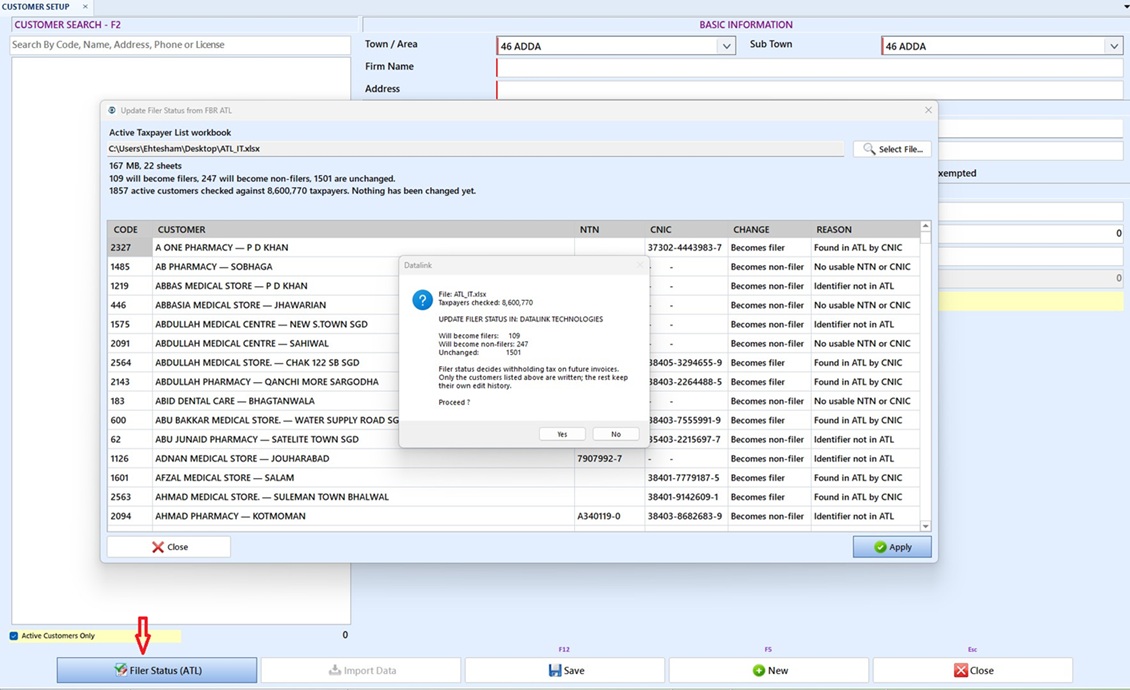
Update Filer Status from the FBR Active Taxpayer List
The new Filer Status (ATL) button on Setups → Customer updates the Filer tick for every active customer from the FBR Active Taxpayer List — a customer is a filer when their NTN or CNIC appears in the workbook you downloaded from FBR, and a non-filer when it does not. Nothing is written until you approve a summary of exactly who changes, and only those customers are touched, so everyone else keeps their own edit history. Customers sharing an NTN or CNIC while disagreeing about filer status are listed for correction first. Needs the new Allow filer status update from FBR Active Taxpayer List right.
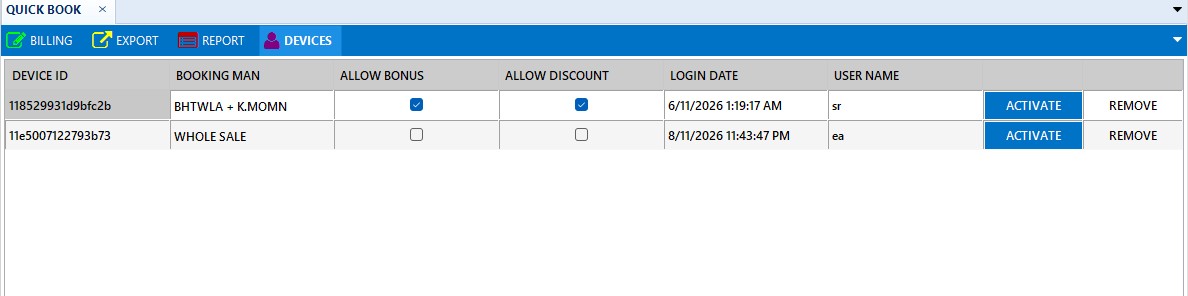
Control Bonus and Discount Per QuickBook Device
The Devices tab on Transactions → Quick Book now carries Allow Bonus and Allow Discount tick boxes for every registered mobile device. Untick either one and press ACTIVATE on that row, and the booking man can no longer enter that value when creating an order in the app — the change reaches the handset on their next order with no app update. The two are independent, the settings belong to the device rather than the person, and devices registered before this update keep both allowed until you change them.
Version 2.4
Previous ReleaseAugust 2026
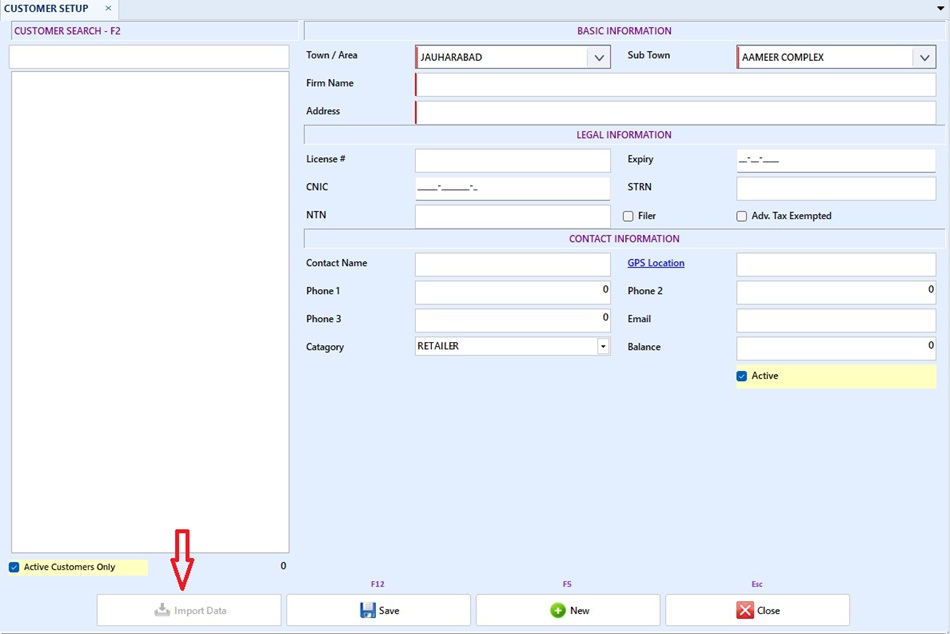
9 updatesImport / Export Master Data — Move Customers and Products Between Databases
Export Master Data on Reports → Customer List and Reports → Product List writes the whole active master to one Excel sheet in the MASTERDATA folder; Import Master Data on Setups → Customer and Setups → Product loads it into another database. Records keep their original IDs, and anything whose ID already exists is left untouched. The sheet also works as a blank form to type data into. Needs the new Allow master data import/export right.
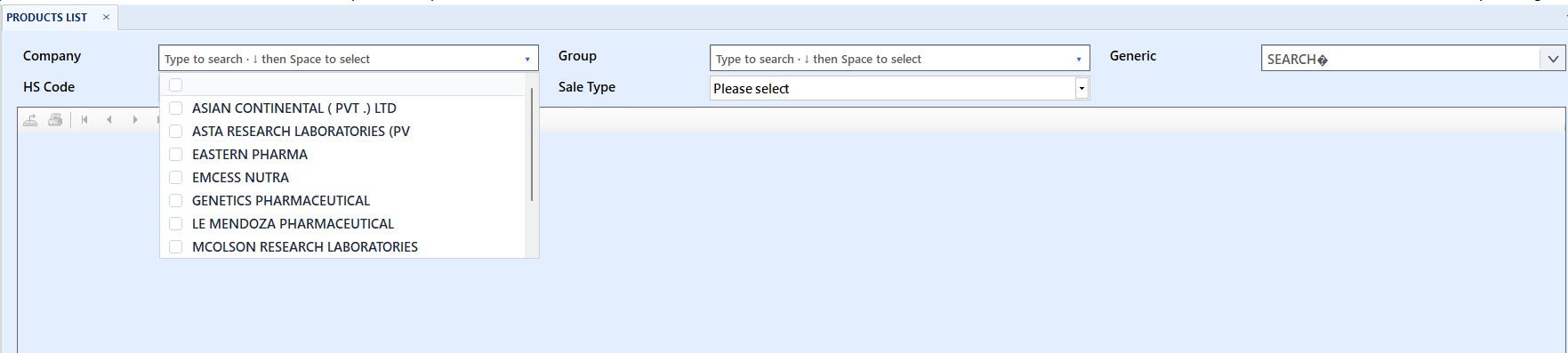
Product List — Pick Several Companies and Groups at Once
Menu → Reports → Product List — Company and Group now take more than one selection, so a list covering three companies is one report instead of three. Export Data follows the Company selection too, and leaving a filter empty still means everything.
Customer Hit — How Many Customers Bought Each Product
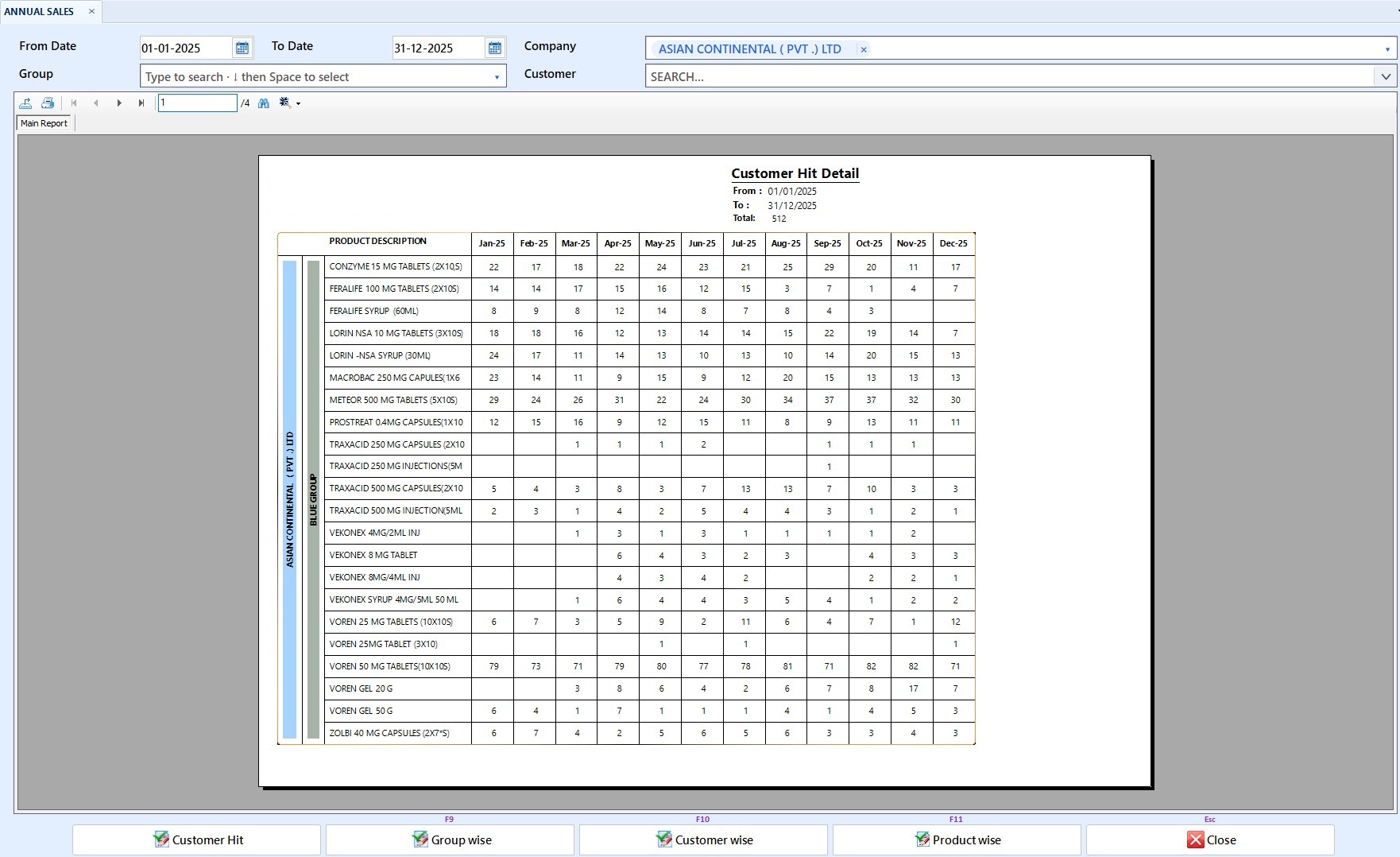
Menu → Reports → Annual Sale — a new Customer Hit button counts how many different customers bought each product each month, so product reach can be told apart from product volume: 500 units to 3 customers reads very differently from 500 units to 90. A customer counts once per product per month however many invoices they were given, and a return does not cancel the hit. The month columns follow the dates you pick and carry the year, so a range crossing into a new year shows Dec-25 and Jan-26 apart instead of merged.
Claim Management — Supplier Claims Are Now Tracked End to End
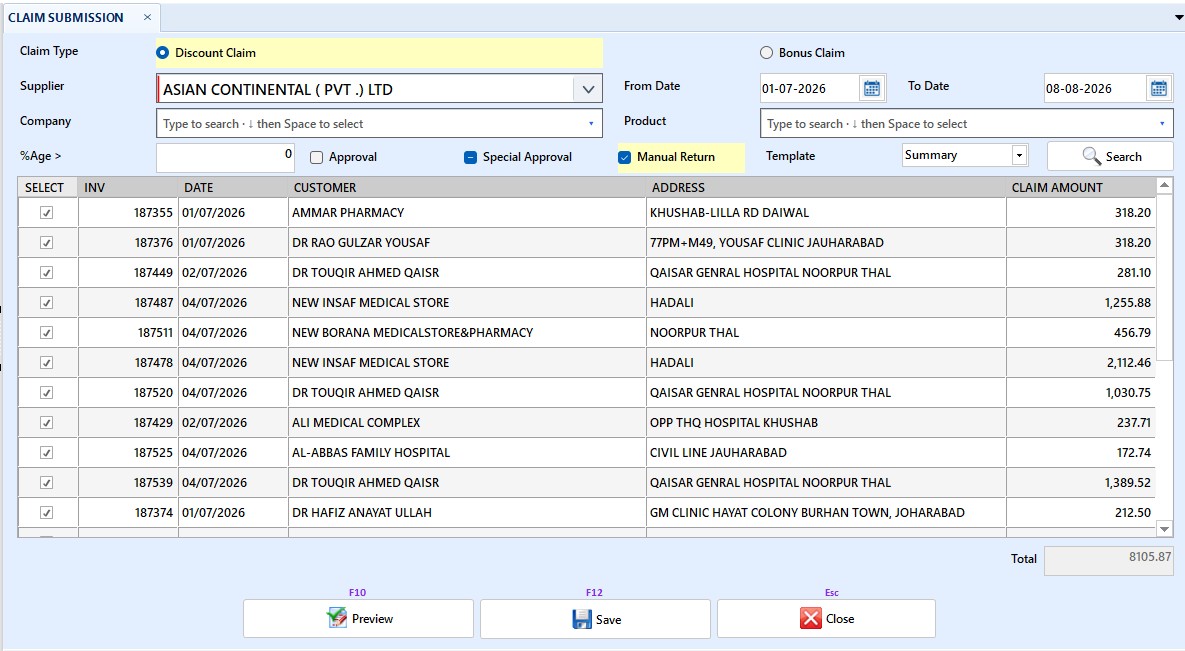
Menu → Claims — a new menu that records the whole life of a supplier claim instead of leaving it in an emailed report. Claim Submission saves what you claim with its own number and a Pending status; Claim Adjustment takes the supplier's approved amount and posts it straight to the supplier ledger; Claim Ledger reports the lot by type and status. The approval no longer goes through Payment to Supplier, so it no longer creates a bank transaction for money that never moved. The old Menu → Reports → Discount Claim moves here unchanged as Claim Report.
Help on F1 — Opens the Manual for the Screen You Are On
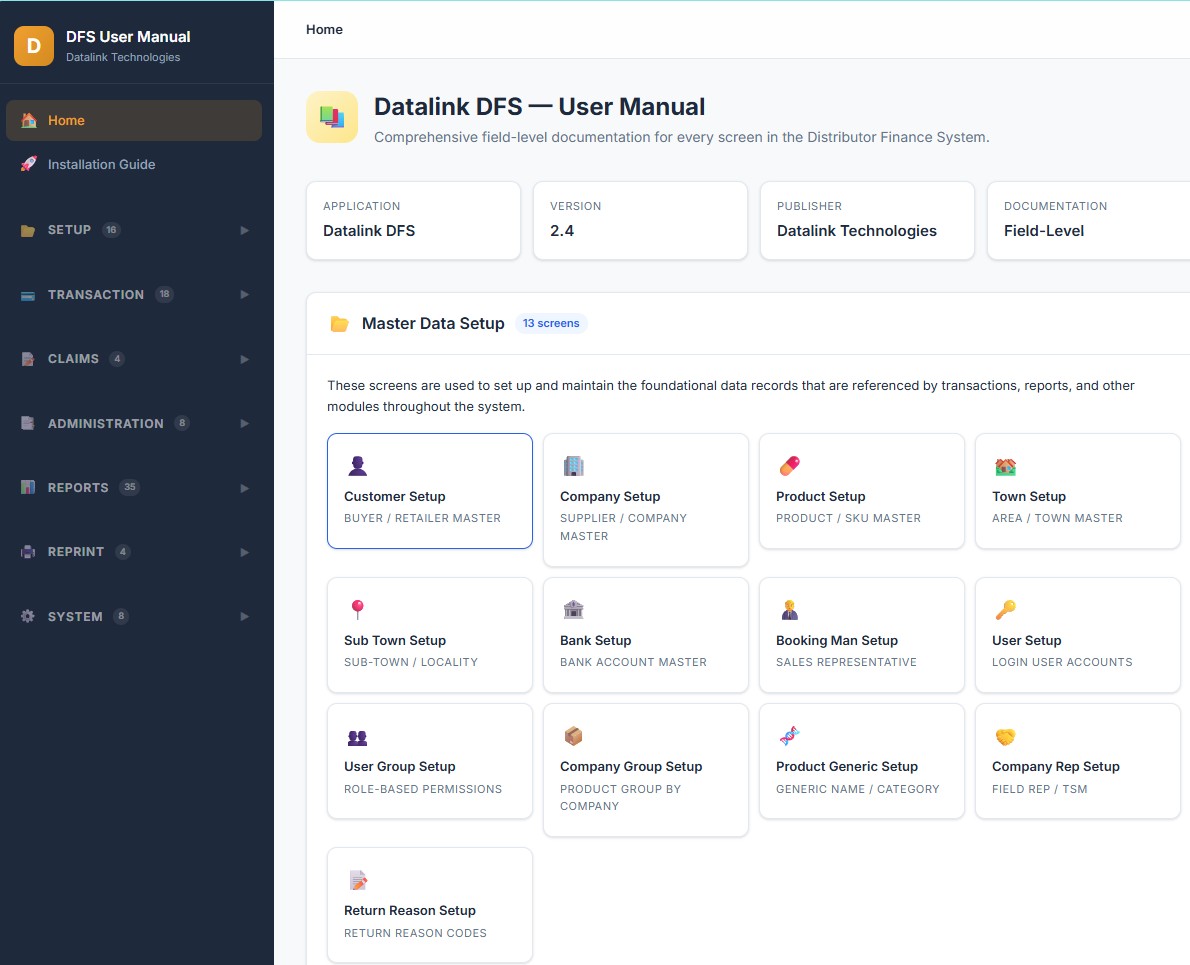
Press F1 on any screen to open that screen's page in the online user manual, instead of hunting for it yourself. To free the key, Search has moved from F1 to F2, and the screens that used F2 — the product search popup, Sort Marked and Add Selected — now use F3. Screens without a page of their own open the manual's home page.
Purchase Invoice — Expiry and Manufacturing Date Alerts
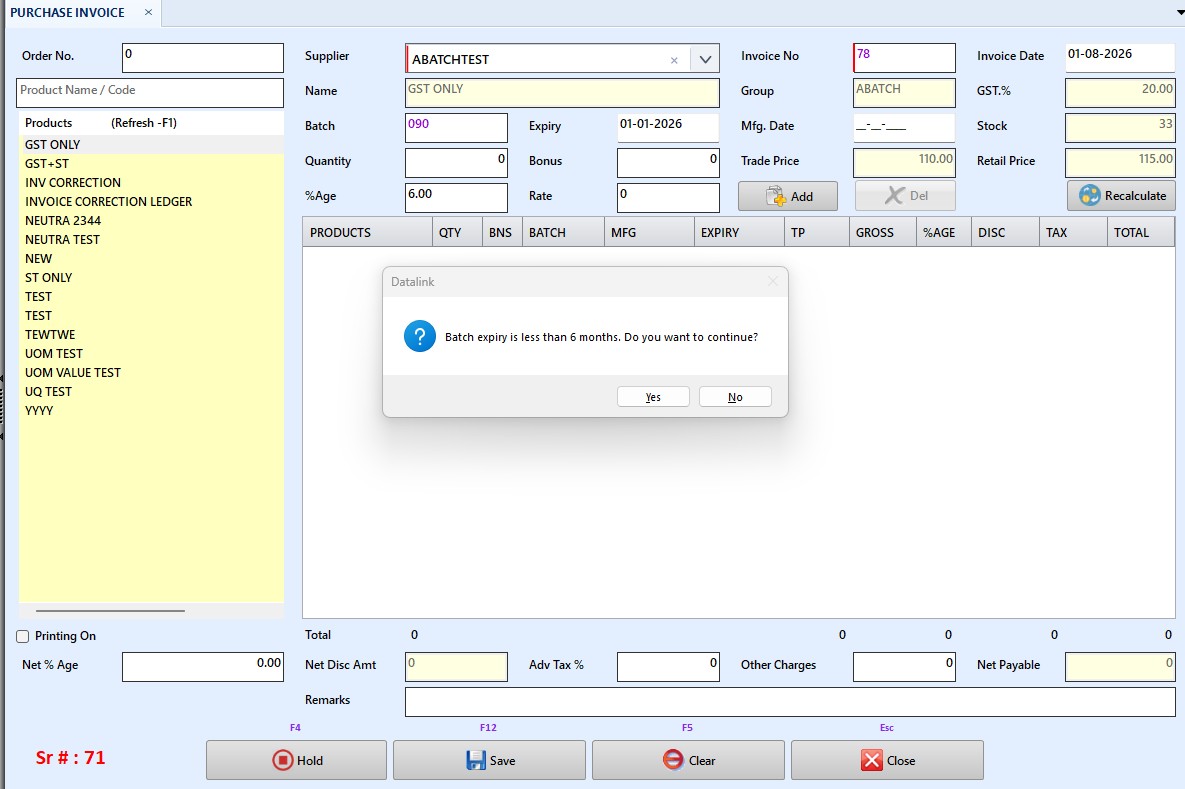
Menu → Transaction → Purchase Invoice — entering a batch Expiry less than six months away, or a Mfg date later than today, now asks you to confirm before moving on. Answer Yes to accept it or No to go back and correct the date — short-dated stock can still be purchased deliberately.
Bonus Claim Detail — Gst and Amount Columns
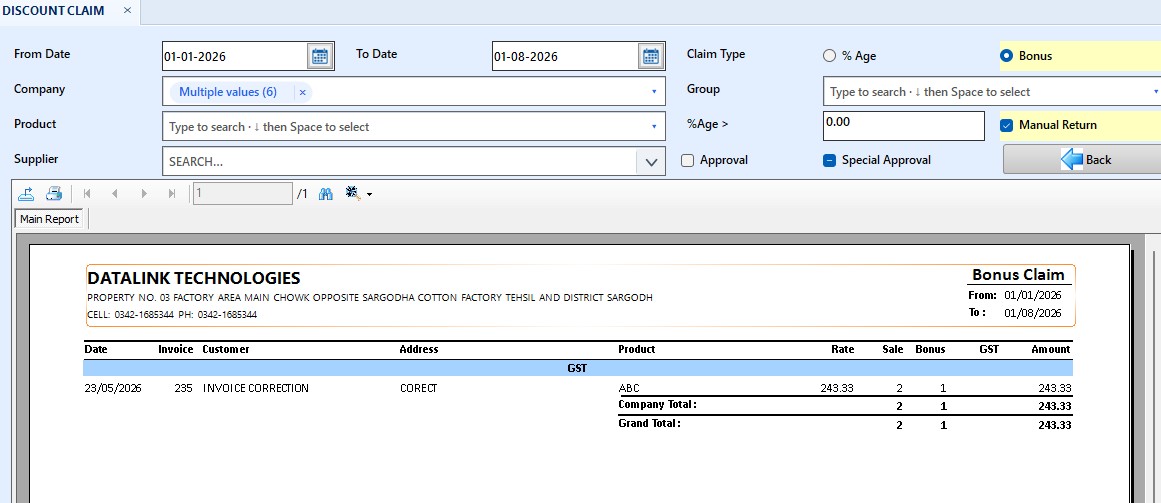
Menu → Reports → Claims — with Claim Type set to Bonus, the Claim Detail report now carries Gst and Amount (bonus × T.P, plus that Gst), so a claim can be checked row by row before it goes to the company. Detail and Product Wise are built from the same lines, so their totals agree.
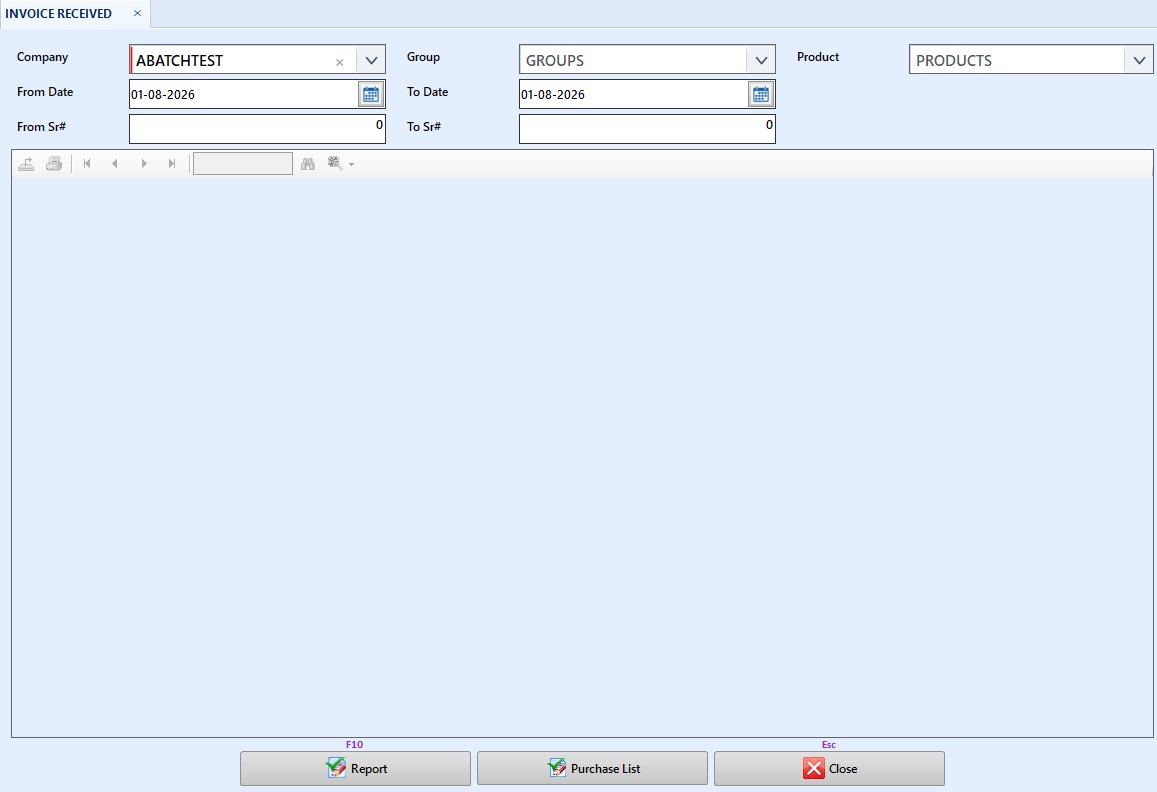
Invoice Received and Purchase Return — Filter by Serial Number Range
Menu → Lists → Invoice Recieved and Menu → Lists → Purchase Return — narrow either list to a run of serial numbers with the new From Sr# and To Sr# boxes. Leave a box at 0 for no limit on that end, or put the same number in both to pin the list to a single entry. The range also applies to Purchase List.
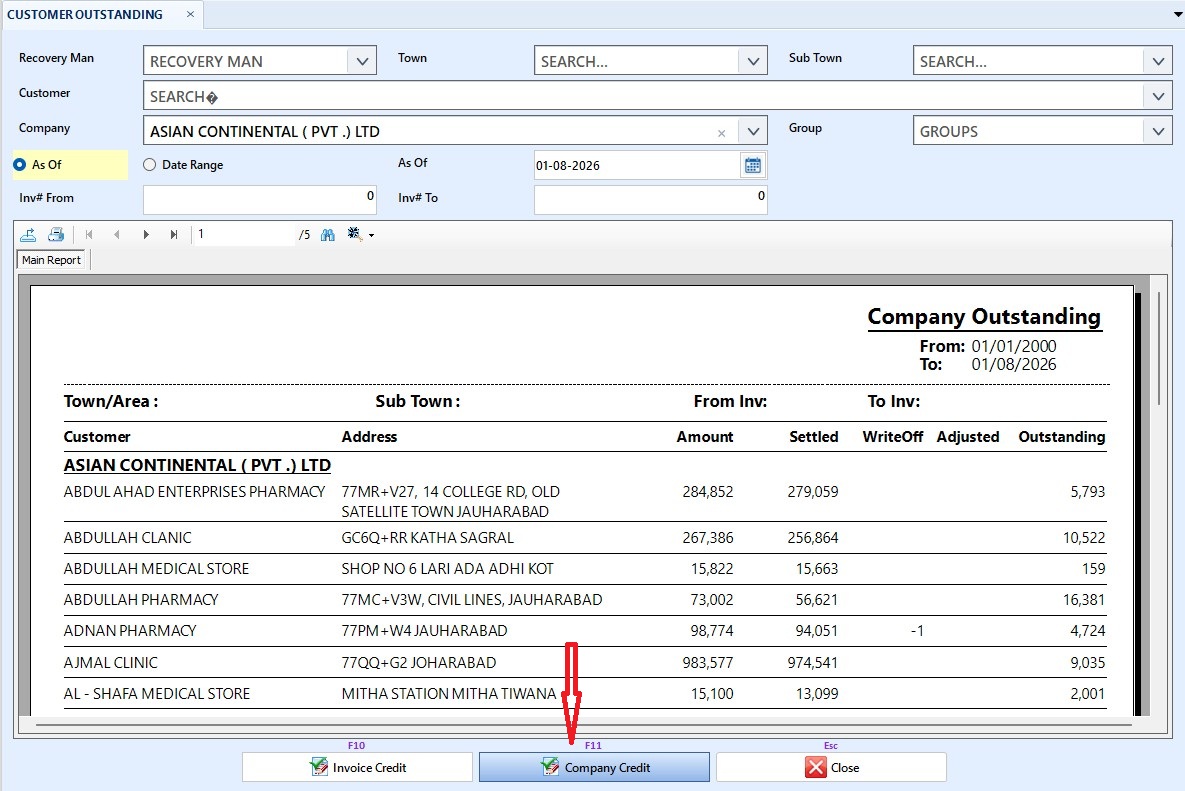
Customer Outstanding — Company Credit, Customer by Customer
Menu → Reports → Customer Outstanding — the screen now offers Invoice Credit (F10) for the bill-by-bill list and Company Credit (F11) for the summary. Company Credit breaks each company down customer by customer, with the customer's name and address on the row and a sub-total under each company, and a bill spanning several companies is split between them so nothing is counted twice. Balances of 2 or less are left out.
July 2026
22 updatesSale Return Report — Filter by Serial Number Range
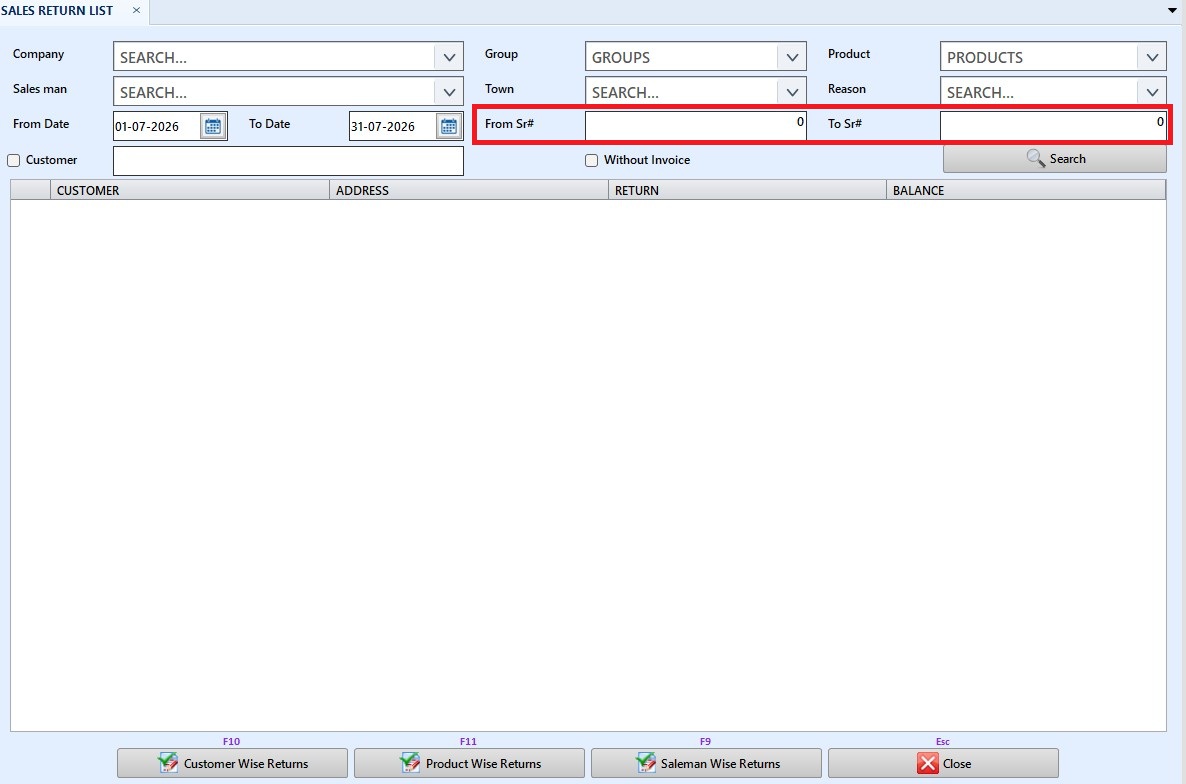
Menu → Reports → Lists → Sales Return
Narrow the returns to a run of serial numbers using the new From Sr# and To Sr# boxes — handy for checking a single day's return books or a specific batch of entries. Either box can be left empty for no limit on that end. The range applies to the customer list on screen as well as the Customer Wise, Salesman Wise and Product Wise reports.
Reprint Invoice — Filter by Town, Sub Town and Skip Already-Printed Bills
Menu → Reprint → Sale Invoice
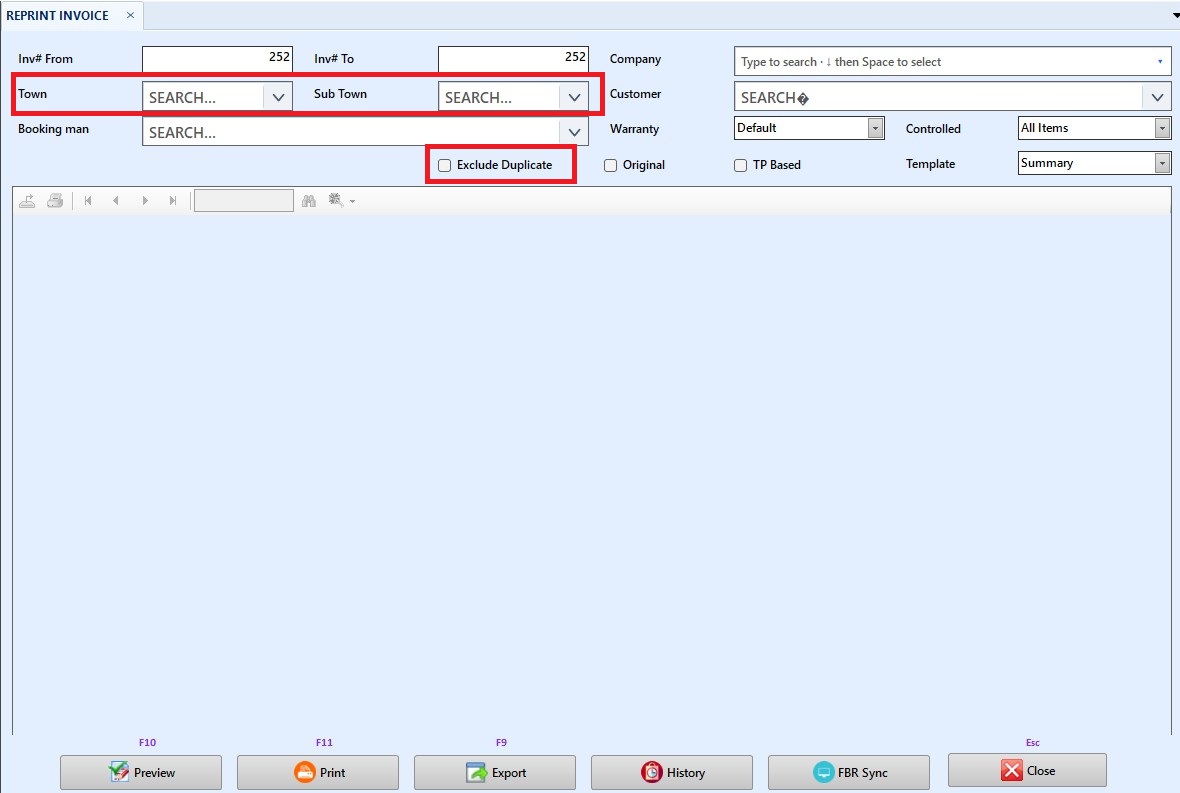
Reprint one round at a time: pick a Town, then a Sub Town from that town — both also trim the Customer list. Leave either empty for all. Tick Exclude Duplicate to skip invoices that were already printed.
Manual Return — Batch Expiry and Prices Now Fill In Correctly
Menu → Transaction → Manual Return
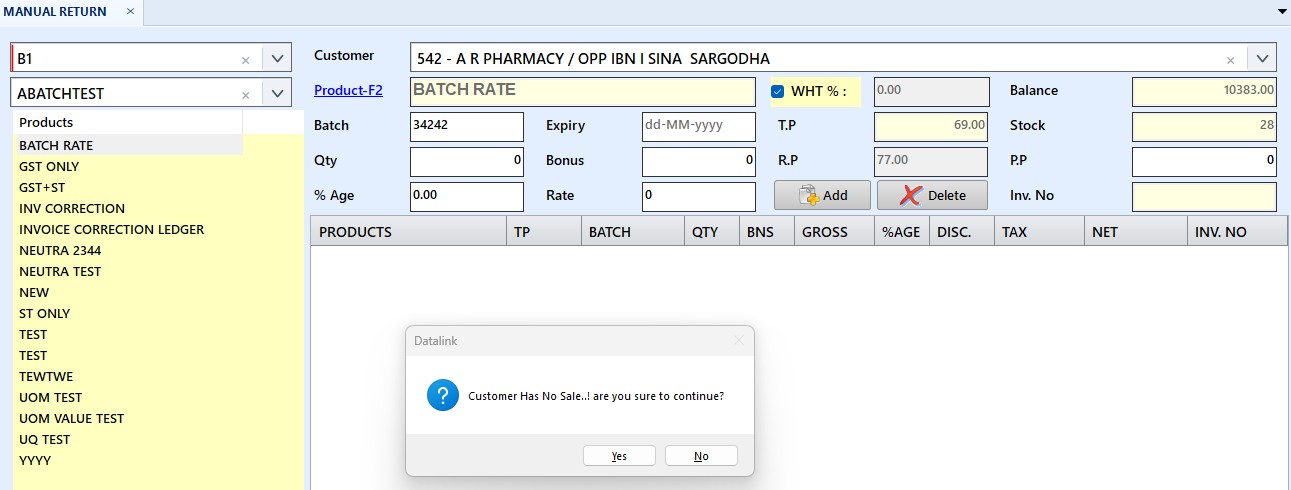
Typing a batch number now fills in the expiry and prices reliably: the batch is looked up in current stock, then stock history for batches already sold out, and finally the product's list price — previously only current stock was checked, leaving T.P at 0. Where no expiry was ever recorded, Expiry is left blank instead of showing invalid date.
Customer Outstanding — Filter by Invoice Number
Menu → Reports → Customer Outstanding
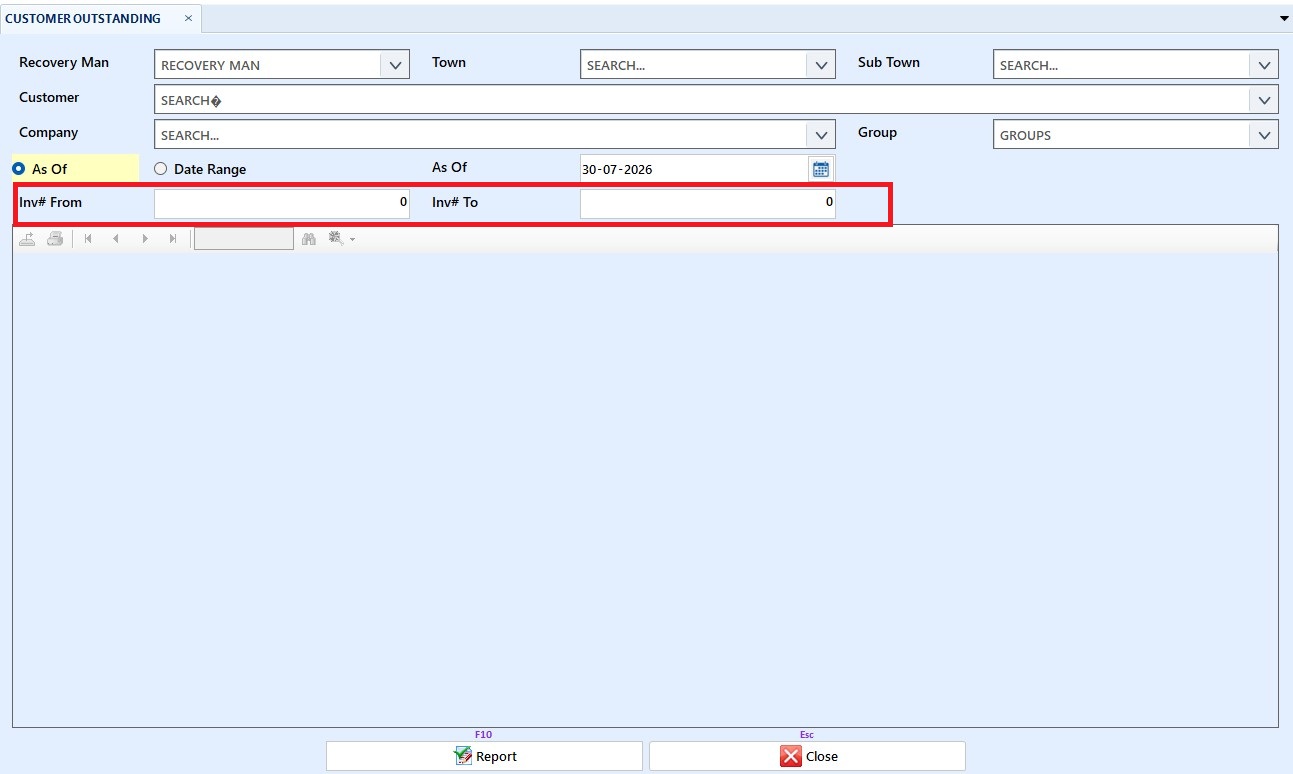
Outstanding bills can now be narrowed to a range of invoice numbers using the new Inv# From and Inv# To boxes. Both start at 0, which means no limit on that side — fill in only Inv# From for that bill number and up, only Inv# To for everything up to it, or both for a range. These combine with the existing town, company, group, customer, recovery man and date filters.
Arrear Report Moved to Customer List
Menu → Reports → Customer List
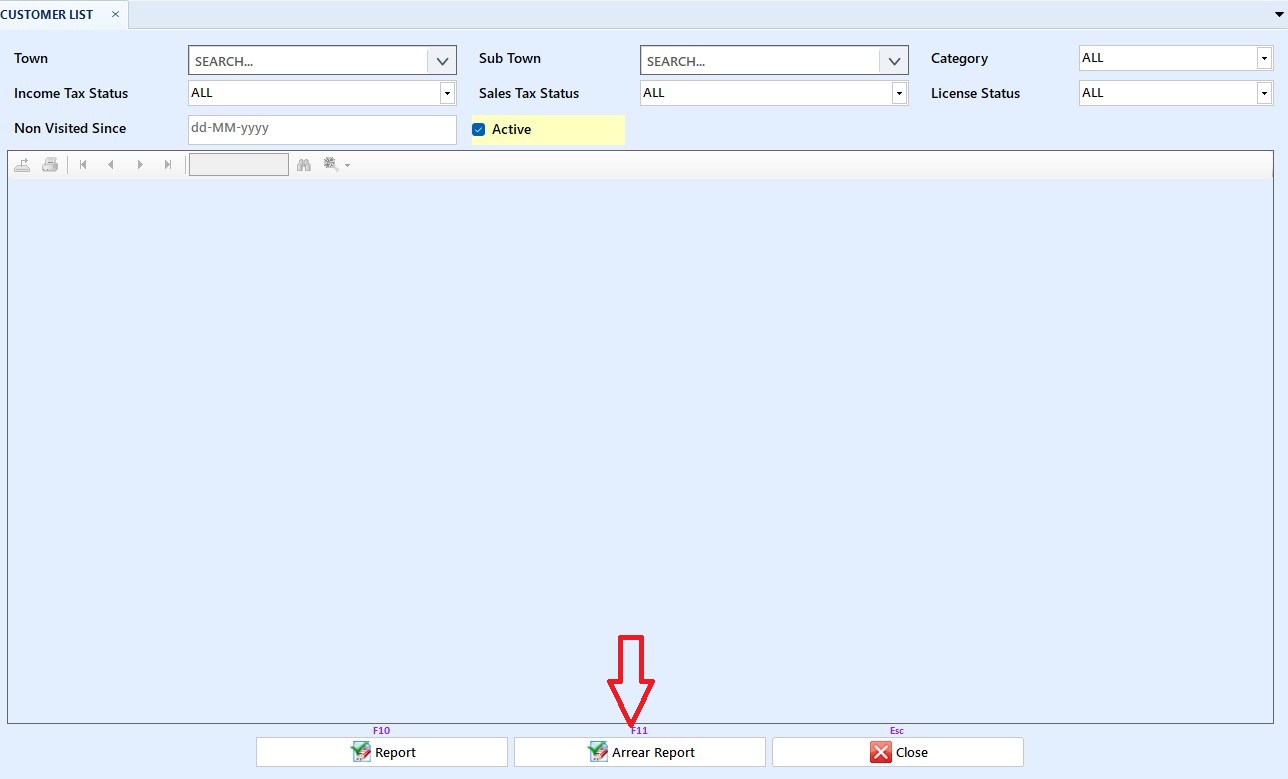
The Arrear Report button has moved to Customer List, where it sits beside the other customer listings. It is scoped by Town and Sub Town, as it always was — on its old screen it sat beside company, group, customer and date filters that it never used. That screen is now named Customer Outstanding and produces the outstanding bills list only.
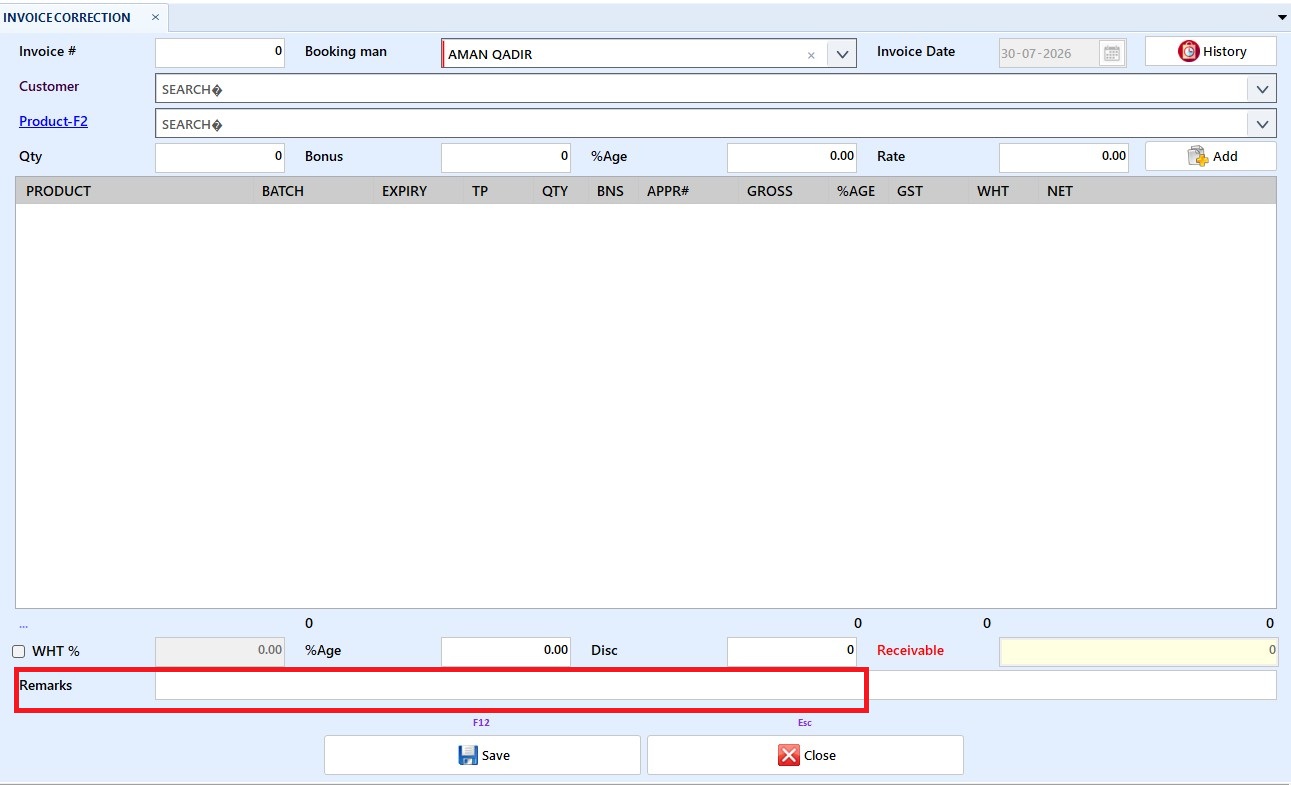
Remarks on Bill Correction
Menu → Administration → Bill Correction
The correction screen now carries a Remarks box, so the reason an invoice was corrected is recorded with the invoice instead of being lost. Loading an invoice fills the box with its existing remarks — edit the note and it is saved along with the correction, or clear the box to remove it. The remark is optional and holds up to 100 characters.
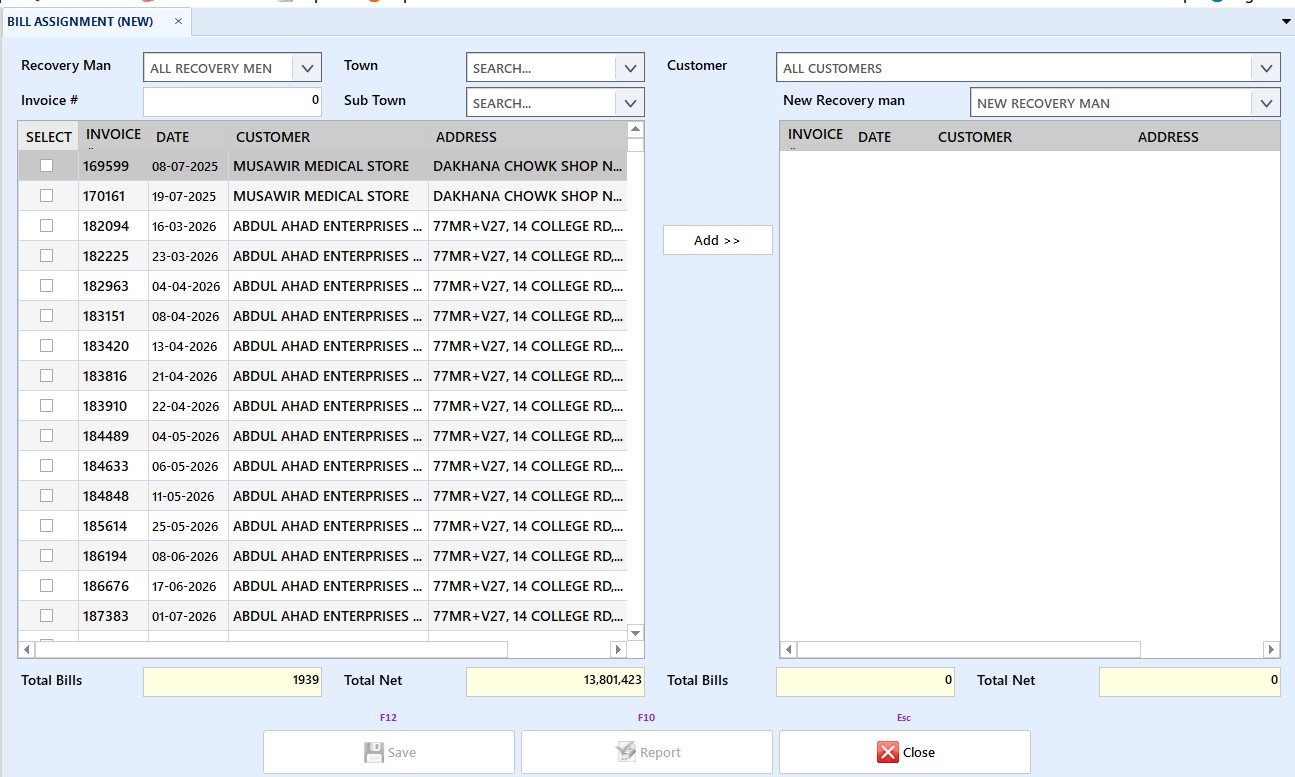
New Bill Assignment Screen — Pick the Bills, Then Pick the Man
Menu → Bill Management → Bill Assignment → New Assignment Screen
Filter outstanding bills on the left, tick the ones you want, click Add Selected to move them to the right, then pick the New Recovery man and save. The filter is separate from the target, so a bill already held by another recovery man can now be found and reassigned.
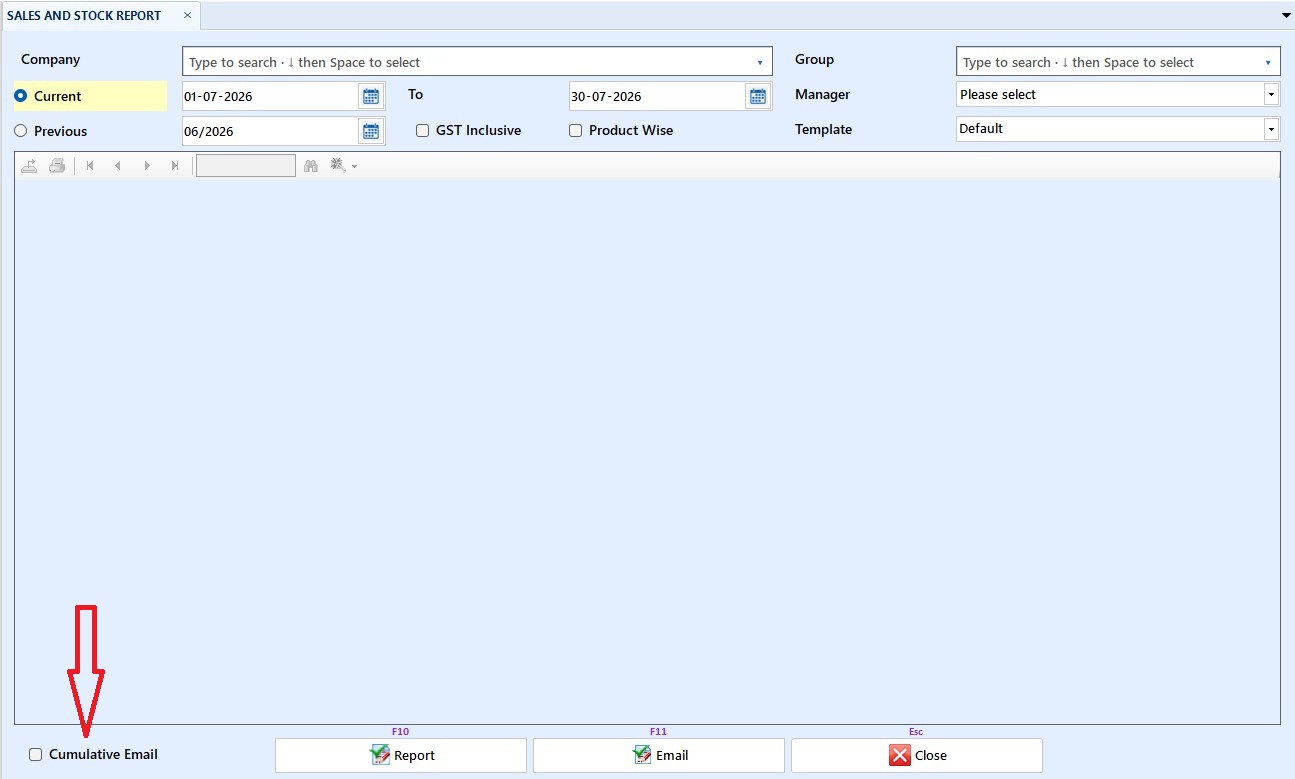
Cumulative Email — One Report for All Selected Companies
Menu → Reports → Sales & Stock / Town Wise Sale / Sub Town Sale / Customer Sale
Tick the new Cumulative Email box and the system builds one report covering every company you selected and sends it as one email to their combined company contacts, so each company's contacts can see the other companies' sales — use it only when every recipient is entitled to see every selected company's figures. Because of that the box is off for everyone until an administrator grants the new "Allow cumulative email" right, and the system then asks twice: the first prompt names the companies being disclosed and the people receiving them, the second confirms it cannot be undone. The box also clears itself after every send. Unticked, the email goes out exactly as it always has — one attachment per company — after a single confirmation.
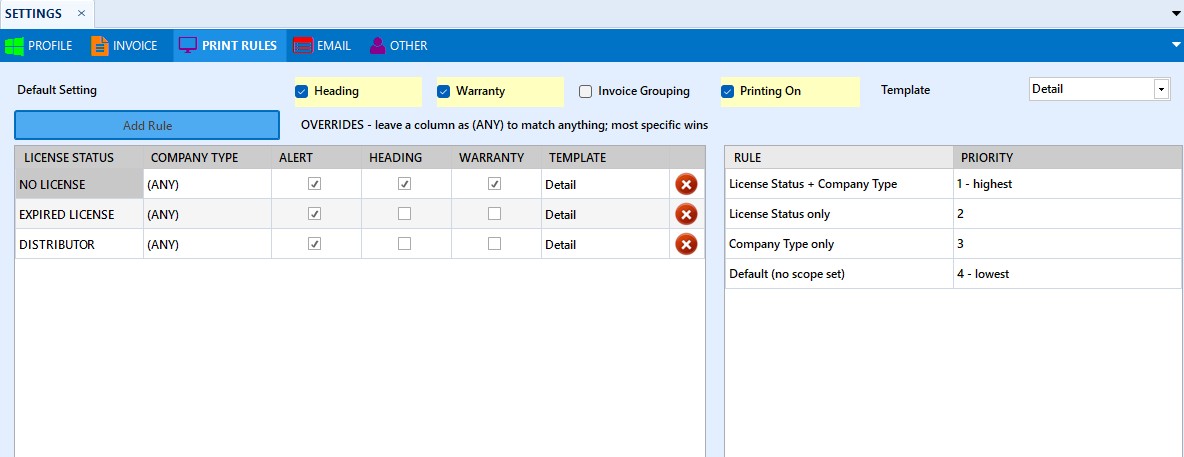
Print Rules — Choose the Invoice Template by Company Type
Menu → System → Settings → Print Rules
The invoice template can now follow the company type — Promotion or Trading — as well as the customer's licence status, so a trading invoice no longer needs its template picked by hand. The old licence grid moves to its own Print Rules tab and becomes a Default plus a short list of Overrides, each scoped by licence status, company type, or both, with (ANY) matching everything; where several match, the most specific wins. Company type is read from the products on the invoice, so adding or removing a line can change which rule applies and replace a template you had chosen by hand
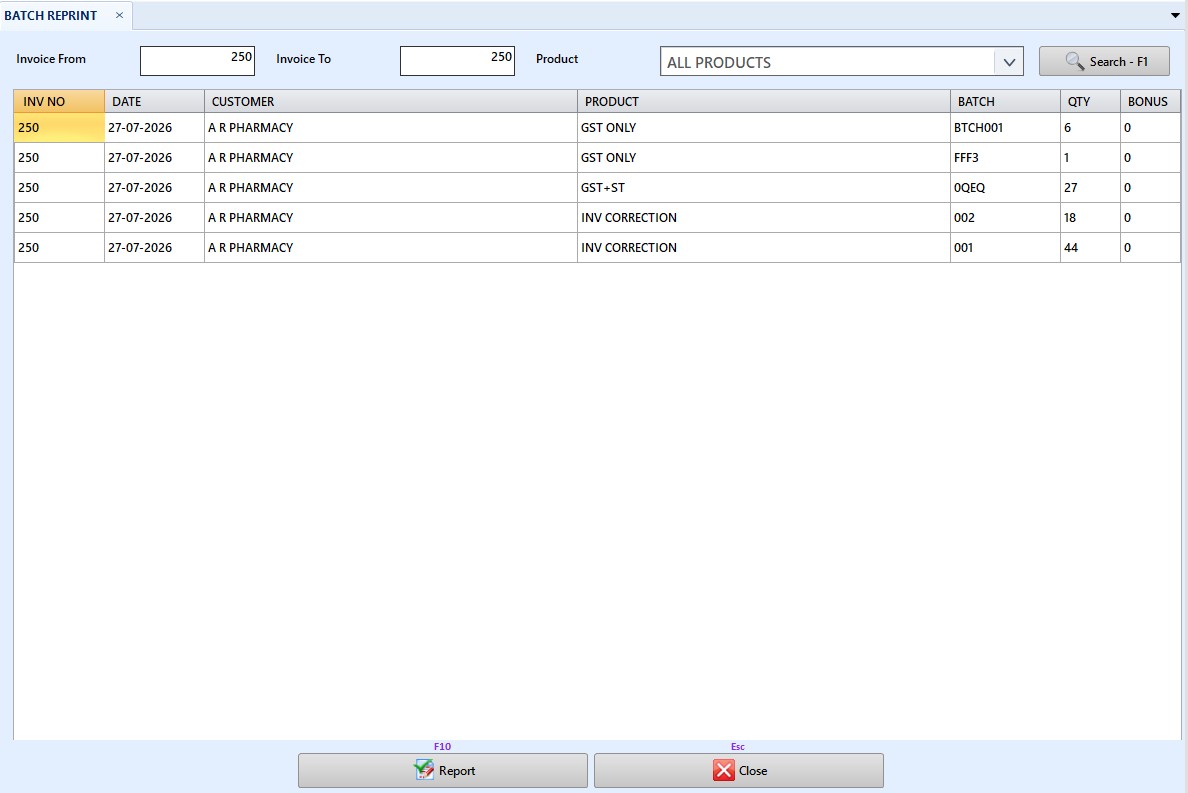
Batch Reprint — Correct a Batch Number on the Printed Invoice
Menu → Reprint → Batch Reprint
Reprint an invoice with a corrected batch number, without editing the posted document. Enter an invoice range, optionally narrow to one Product, and click Search. Batch is the only column you can edit — then Preview and print. Nothing is saved to the database: the invoice keeps its original batch, is not re-marked as printed, and nothing is re-sent to FBR. Your edits are discarded once you search again or close the screen.
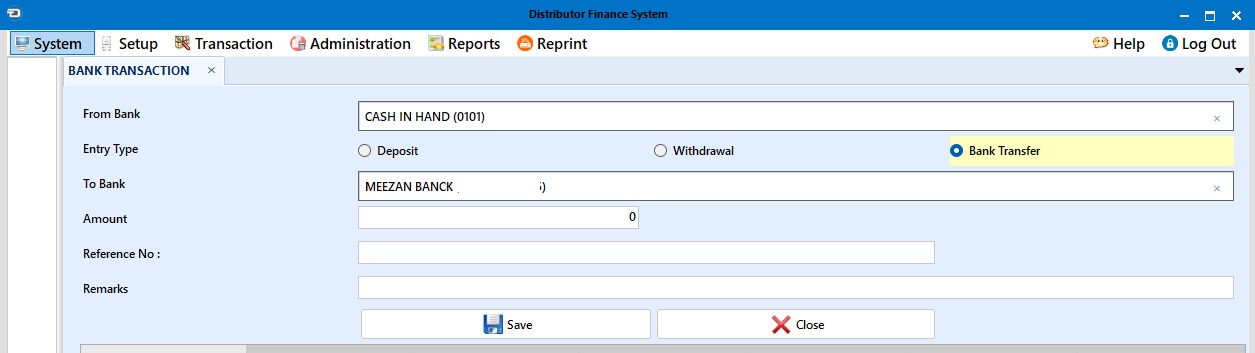
Bank Transfer — Move Money Between Your Own Bank Accounts
Moving cash between your own bank accounts no longer has to be entered twice. Bank Transaction now starts with an Entry Type — Deposit, Withdrawal or Transfer. Choose Transfer, pick a From Bank and To Bank, enter the amount once, and both ledgers are posted in a single step. Each bank keeps its own running balance and names the other in its remarks, and the two halves save together — a transfer can never be left half-recorded. The Cheque / Slip No is optional for transfers.
The separate Deposit and Withdrawal boxes are replaced by a single Amount field — the Entry Type decides the direction.
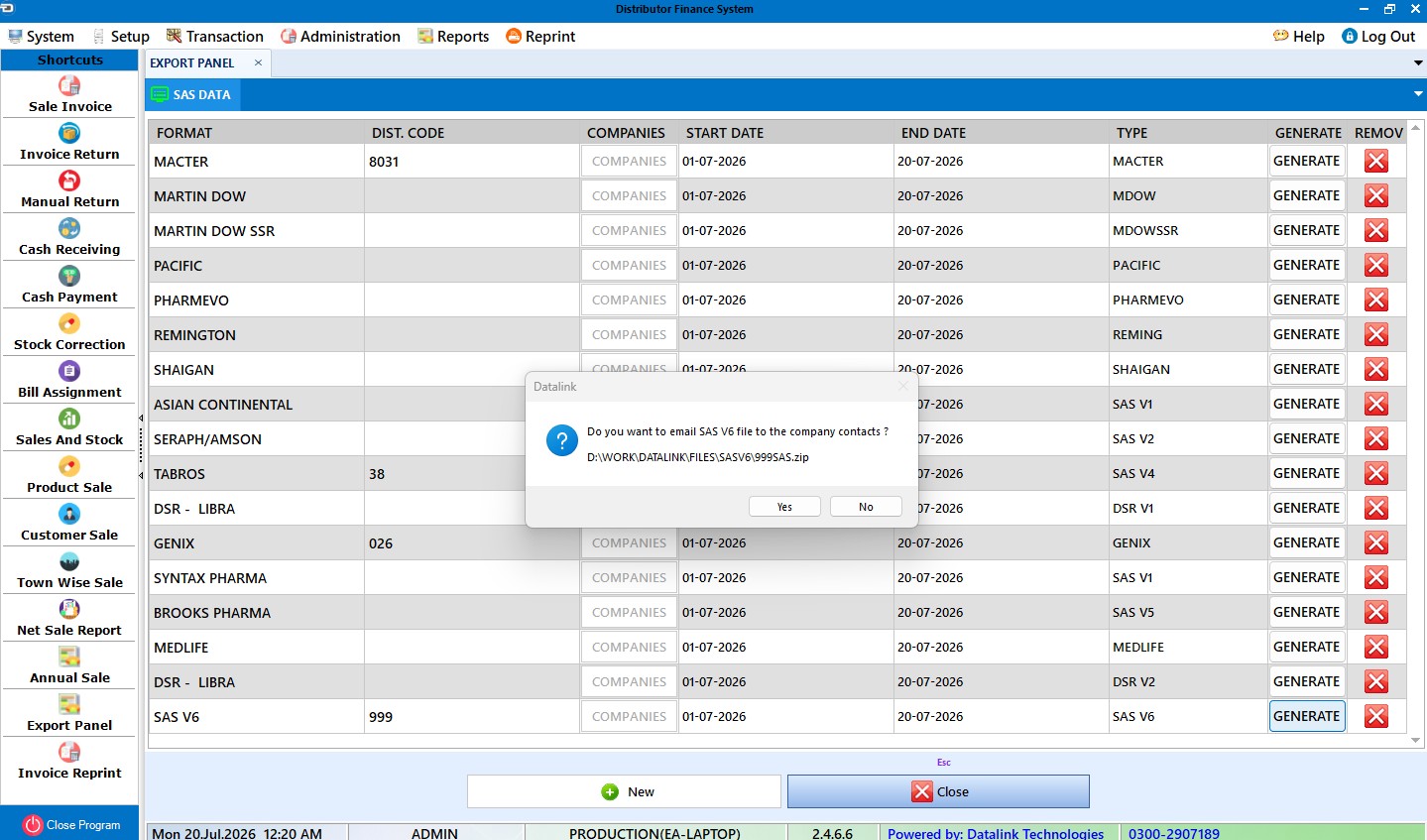
Export Panel — Email SAS/DSR Files Straight to Companies
Generated export files no longer have to be dug out of a folder and mailed by hand. Every row on the Export Panel now has its own GENERATE button, and as soon as the zip is ready DFS asks whether to email it directly to the company's contacts — the contact persons marked with the SAS flag in Company Setup → Contacts. Sending uses the SMTP account already configured in Settings, and the email carries the data period so the company knows exactly what it received. Prefer to handle the file yourself? Skip the email and DFS offers to open the output folder instead. Each successful run also records its generated date, so you can always tell when a company's data was last produced.
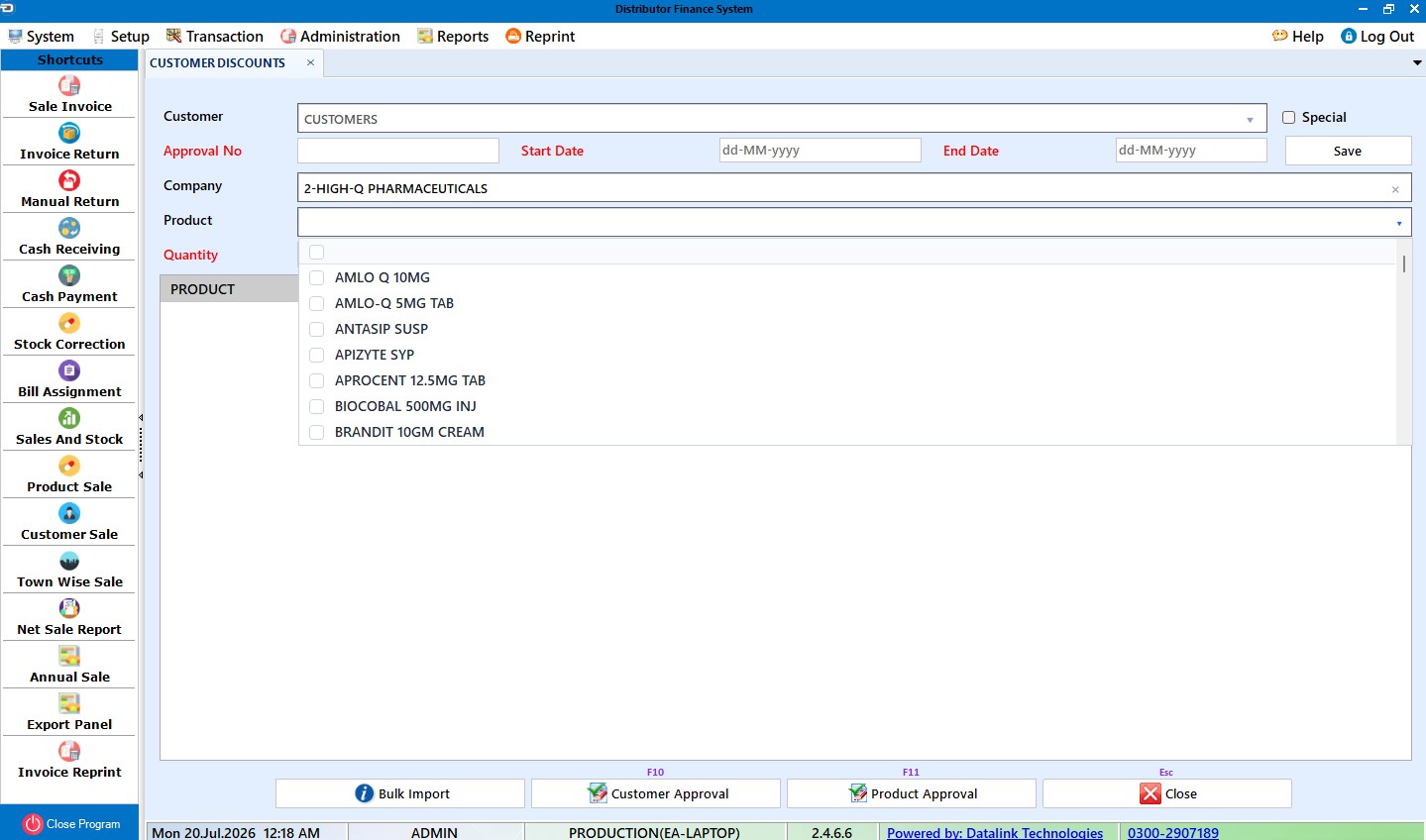
Sales Approval — Approve a Whole Company in One Click
Approvals no longer have to be entered one product at a time. The Product box on Sales Approval is now a multi-select — tick as many products as you need, search to narrow the list, or use Select All — and a single Add applies the quantity and discount percentages to every product you picked. A new Group box beside Company shortens the product list to one product group. Leave the product box empty and DFS asks whether to apply the approval to every product of the selected company (or just the chosen group), then writes them all in one go. If any product you are approving already carries an approval under the same number, you are asked whether to overwrite those, skip them and add only the rest, or cancel — so hand-tuned entries are never silently replaced. Note that products added to the company after an approval is saved are not covered automatically — select the new products, or repeat the all-products step and choose skip.
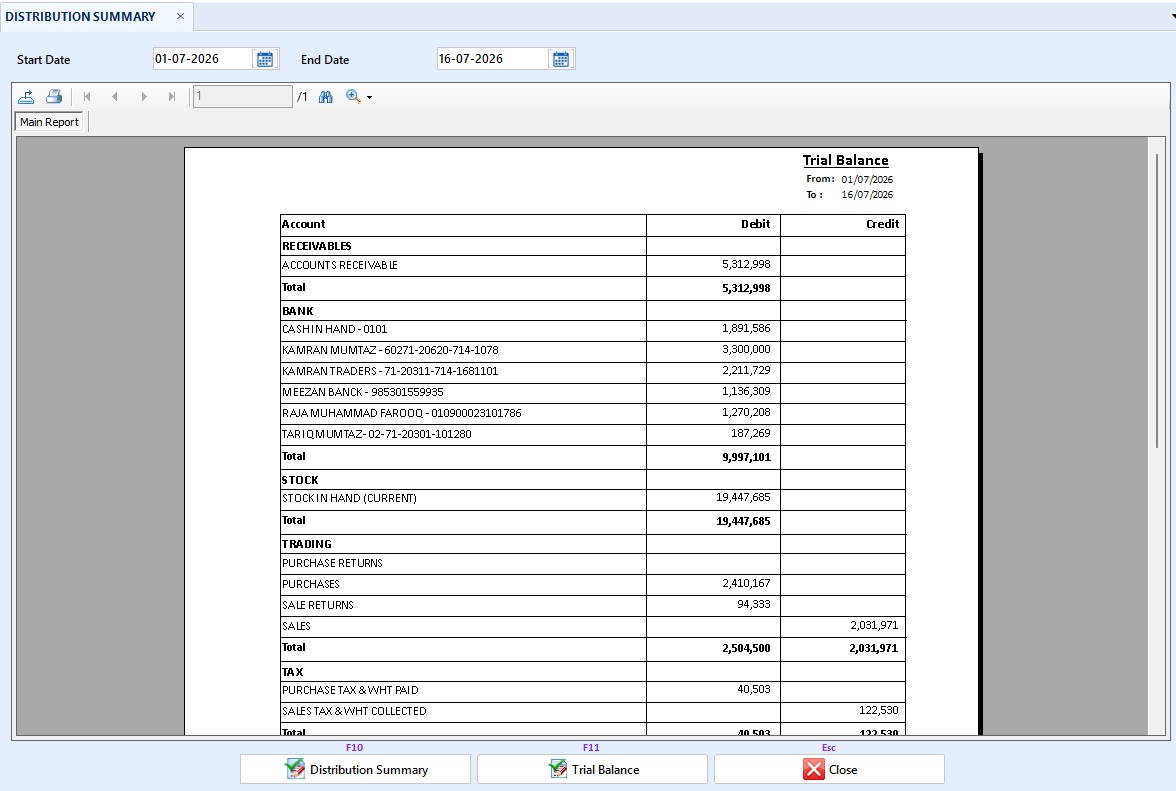
Trial Balance Report
A new Trial Balance brings every balance in DFS onto one statement — receivables, bank accounts, stock, trading figures, taxes, expense and income heads, and supplier payables — in classic Debit / Credit columns with equal totals. Balances are recomputed from the ledgers up to your chosen date, so a back-dated trial balance is accurate; sales and purchases are shown tax-exclusive with GST and WHT in their own Tax section. Open it from Distribution Summary → Trial Balance. The Capital / Difference line balances the statement and approximates owner's capital in a healthy book.
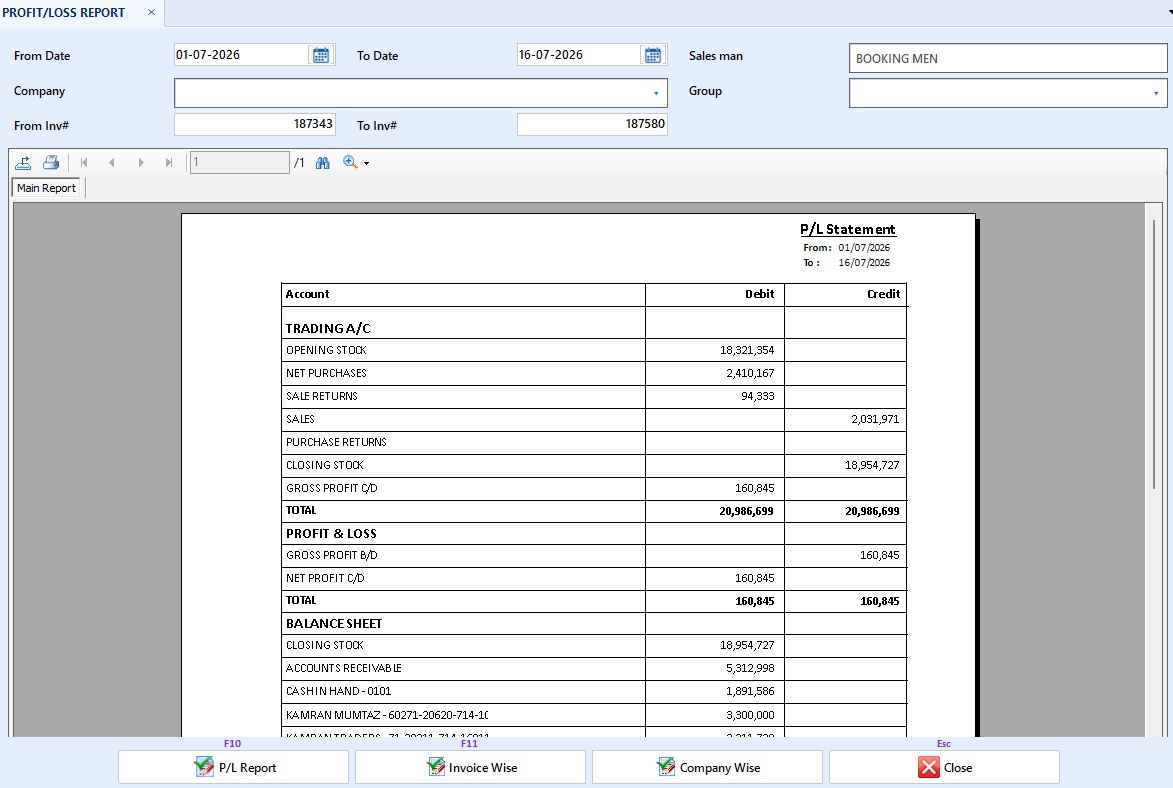
New P&L Statement — Trading A/C, Profit & Loss and Balance Sheet
The month-wise profit report has been rebuilt as a proper three-part P&L Statement: a Trading Account, a Profit & Loss account, and a Balance Sheet that finally balances — every section's two sides total equal. Sales and purchases are now tax-exclusive on both sides, so gross profit is no longer inflated by GST and withholding tax; the tax amounts appear on the balance sheet as Purchase Tax & WHT Paid and Sales Tax & WHT Collected instead. Receivables, payables, and bank balances reconcile line-for-line with the new Trial Balance, and months that were never closed are clearly marked (no snapshot) rather than printing zeros. Open it from Profit / Loss → P&L Statement; figures will differ from the old Month Wise report — that is the correction.
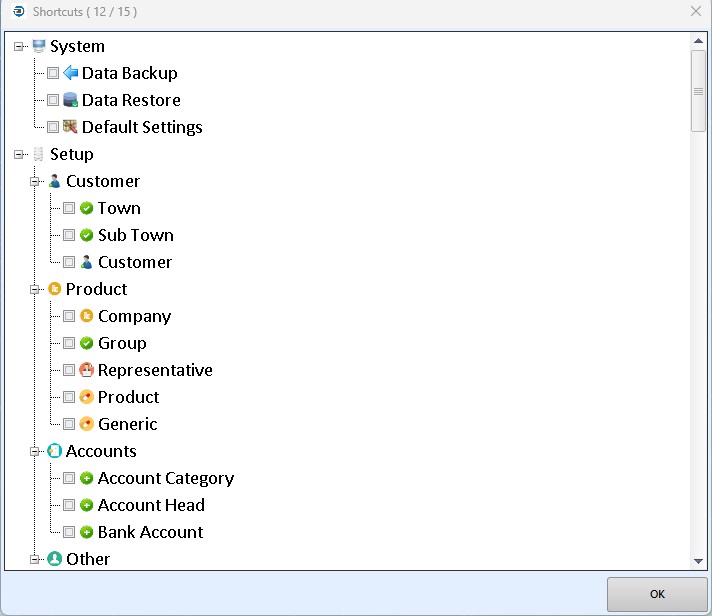
Choose Your Own Side-Bar Shortcuts
The side-bar shortcuts are now yours to choose. Open
System → Shortcut Setup, tick up to 15 of the menus your
role allows, and click OK — the side bar updates instantly and your
selection follows your login on any computer. The bar can be
collapsed to an icon-only rail with the splitter next to it, and
Close Program stays pinned at the bottom.
Until you save your own selection, the side bar shows a standard set of the
most-used screens, limited to the menus your role allows — so nothing is lost if you never
open the setup screen. Unticking everything and clicking OK brings that standard set back.
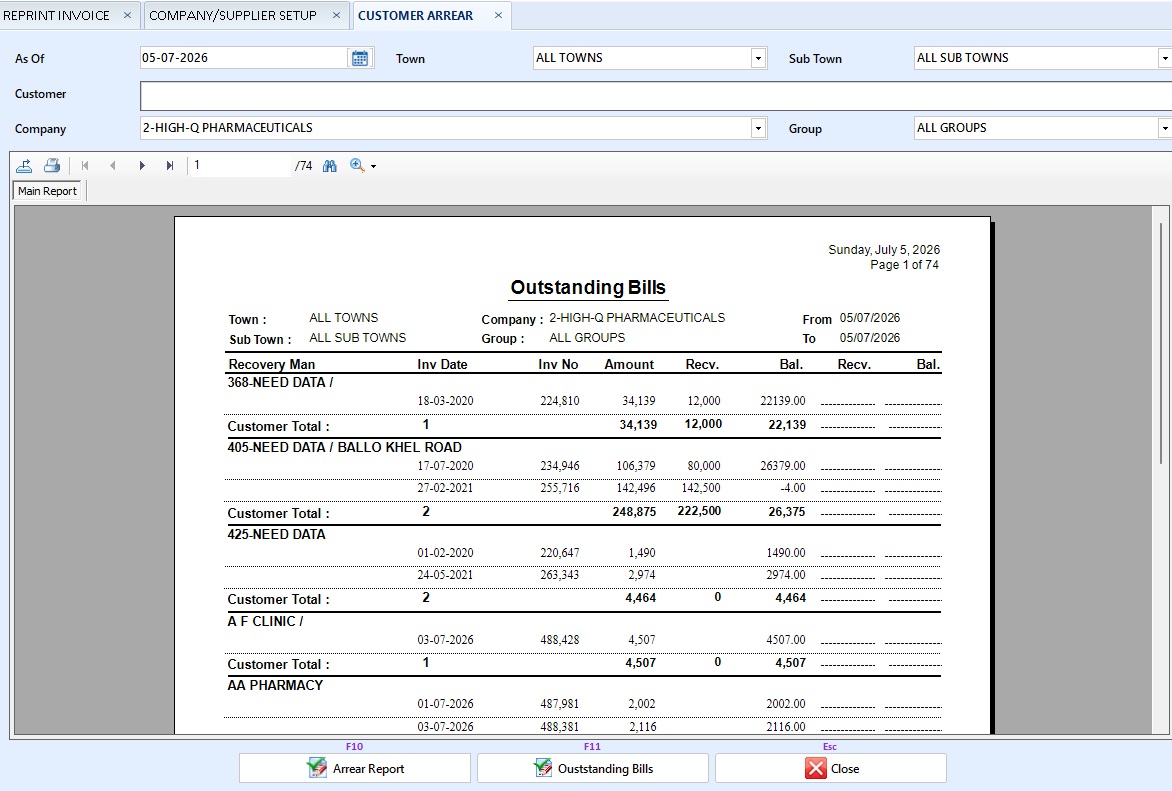
Company-level Receipt, Write-off & Balance Shift
When you post a Receipt — or a Write-off / Balance Shift — the invoice is now settled or adjusted at company level automatically. The amount flows across the invoice's companies in order, so recovery and aging tie back to the exact company that was paid, written off, or adjusted. Nothing changes in how you use Cash Receive, Write Off Invoice / Discrepancy, or Shift Invoice Balance; the breakdown is maintained for you and always reconciles to the invoice total.
Group Invoice Products by Company
Products on the invoice can now be grouped by company, so items from the same company appear together on the printout for easier reading and checking. Turn it on from Default Setting → Invoice tab.
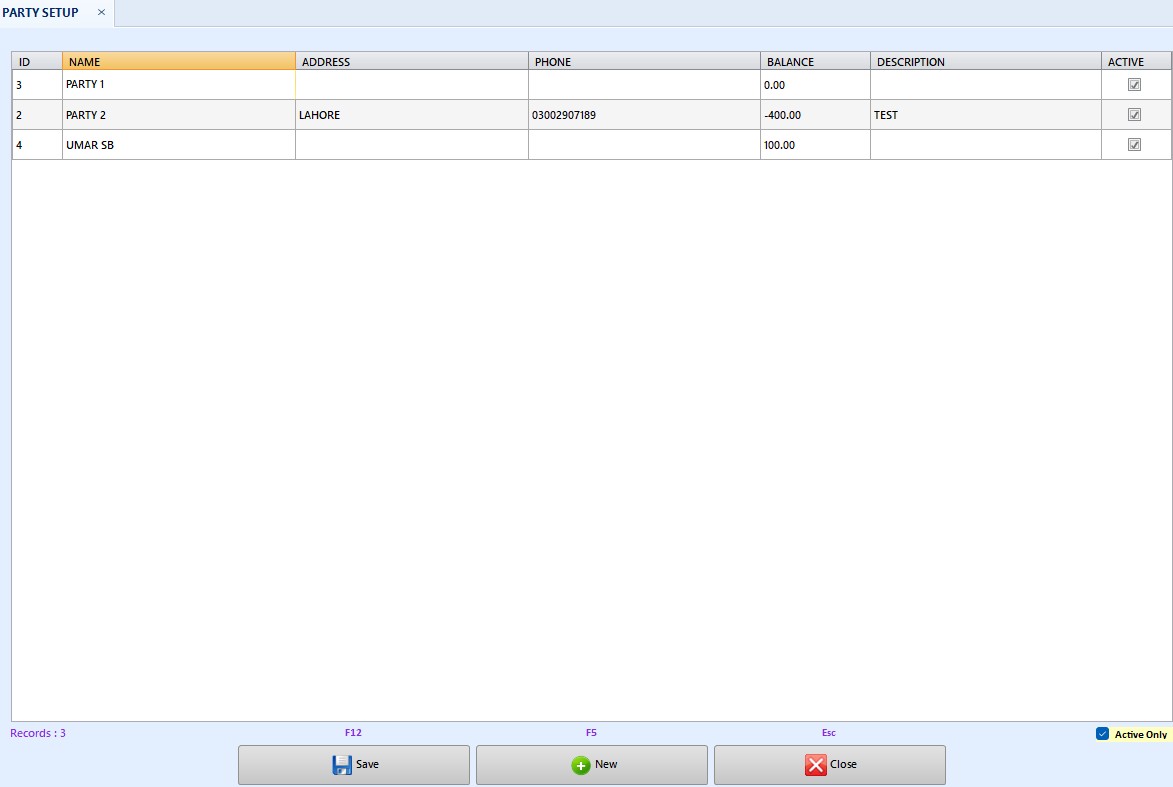
Party Account Setup
A new Party Account Setup screen lets you maintain the party master list — name, type, address, phone, description and opening balance — directly in an editable grid. Add and edit parties inline, filter to Active Only, and deactivate parties with a soft delete that keeps their history intact. Opening balances and later changes are posted automatically to the party ledger as a Balance Correction.
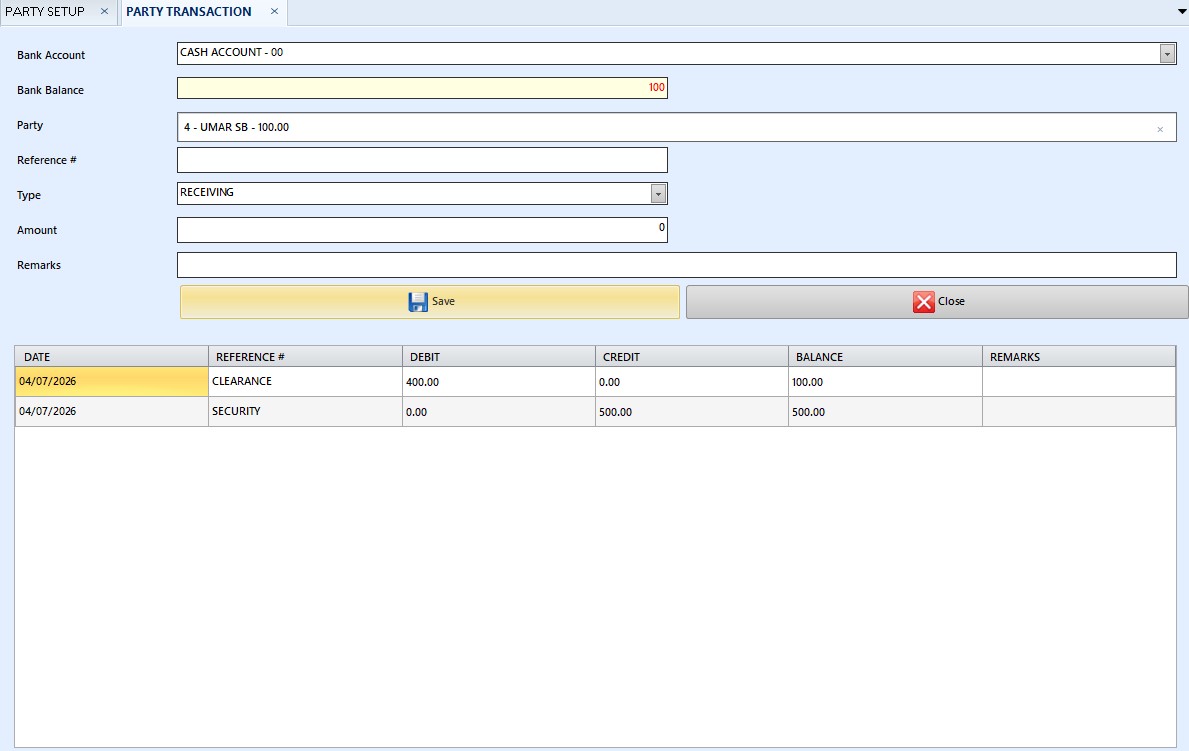
Party Transaction
A new Party Transaction screen records money received from or paid to a party through a bank. Choose Receiving or Payment, pick the party and bank, and enter the amount — the party ledger, party balance, bank balance and bank ledger are all updated together in one transaction.
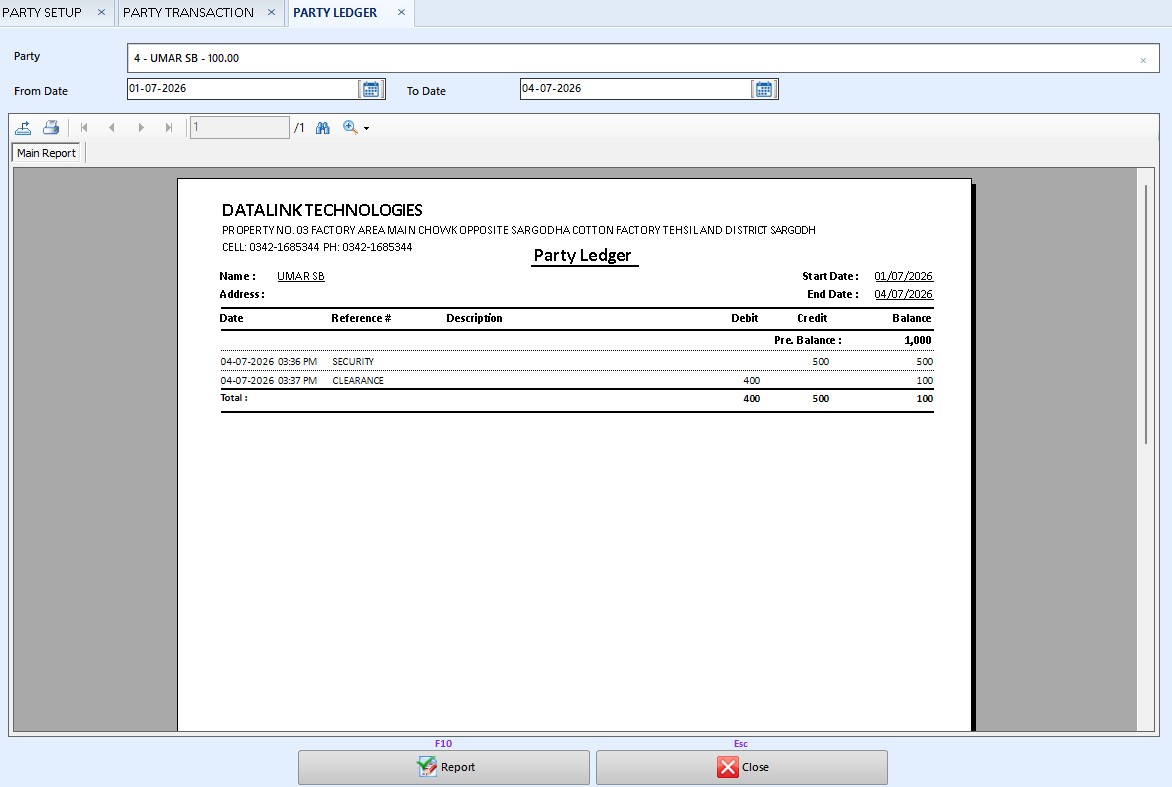
Party Ledger
A new Party Ledger report shows every receipt and payment for a party over a date range — with the bank used, reference, debit, credit and a running balance — built from Party Transaction postings and opening-balance corrections.
Cash Payment — Payment or Receiving
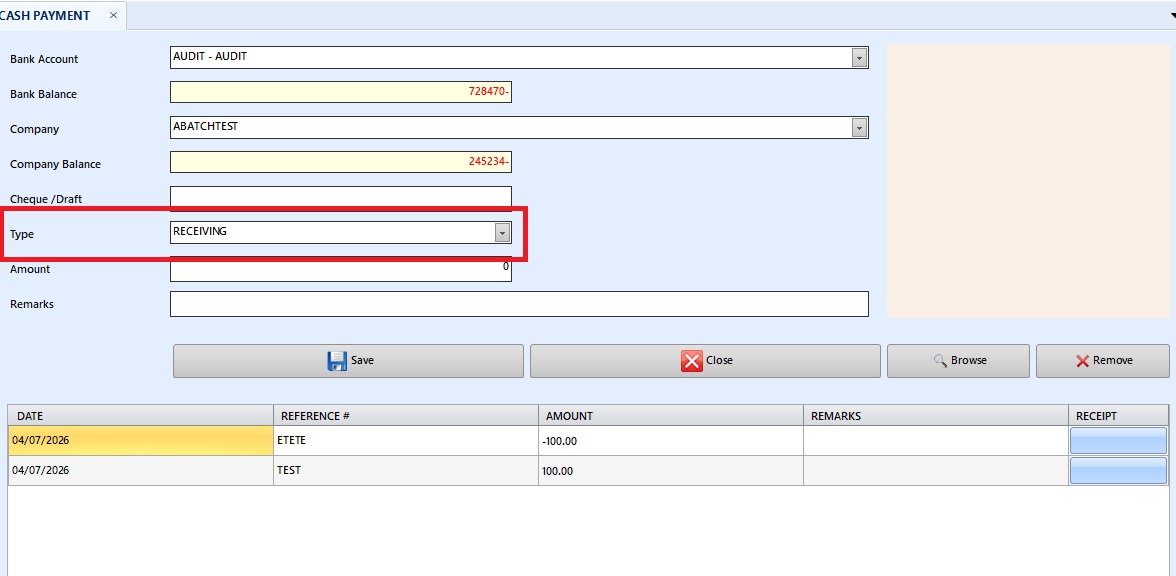
The Cash Payment screen now supports a Type of Payment (default) or Receiving. Use Receiving when a supplier pays money back — for example a claim reimbursement — and the supplier balance, company ledger and bank balance are all updated in the opposite direction.
June 2026
2 updatesCompany Setup screen
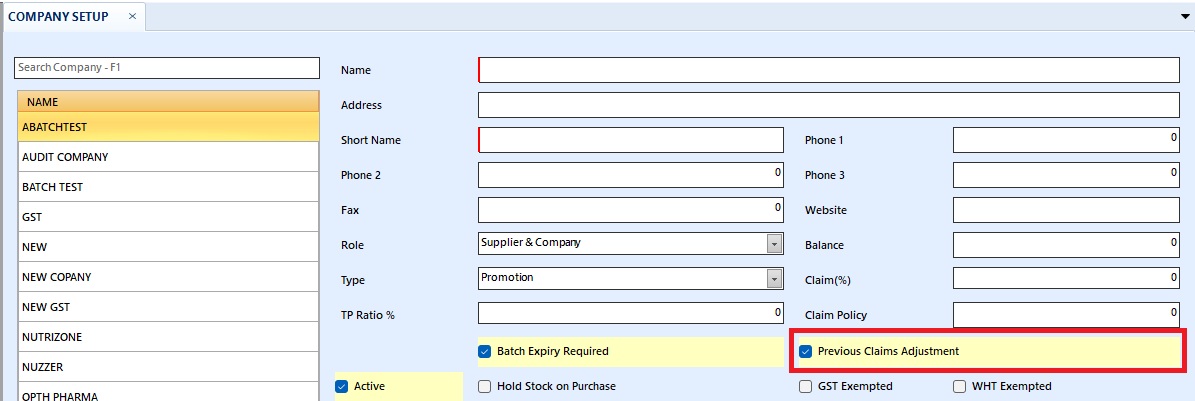
A new Previous Claims Adjustments option has been added to Company Setup, letting you configure per-company whether prior-period claim adjustments are allowed. Enable it for companies whose claim policy permits back-dated adjustments; leave it off for those that don't.
Datalink Installer
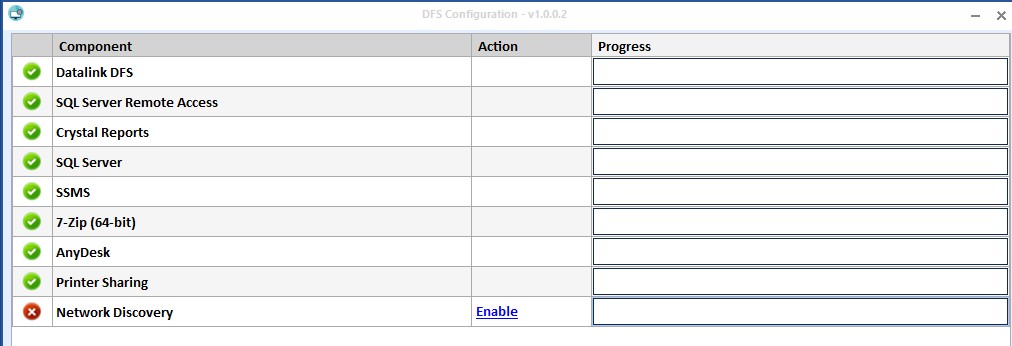
Datalink Installer has been introduced to install Datalink DFS seamlessly with simple steps. It bundles every prerequisite — SQL Server, SSMS, Crystal Reports, 7-Zip, AnyDesk — and handles firewall rules, printer sharing, network discovery, file ACLs, and the Datalink DFS deploy itself, so a fresh machine goes from blank to ready without any manual configuration.
May 2026
4 updatesInvoice Correction
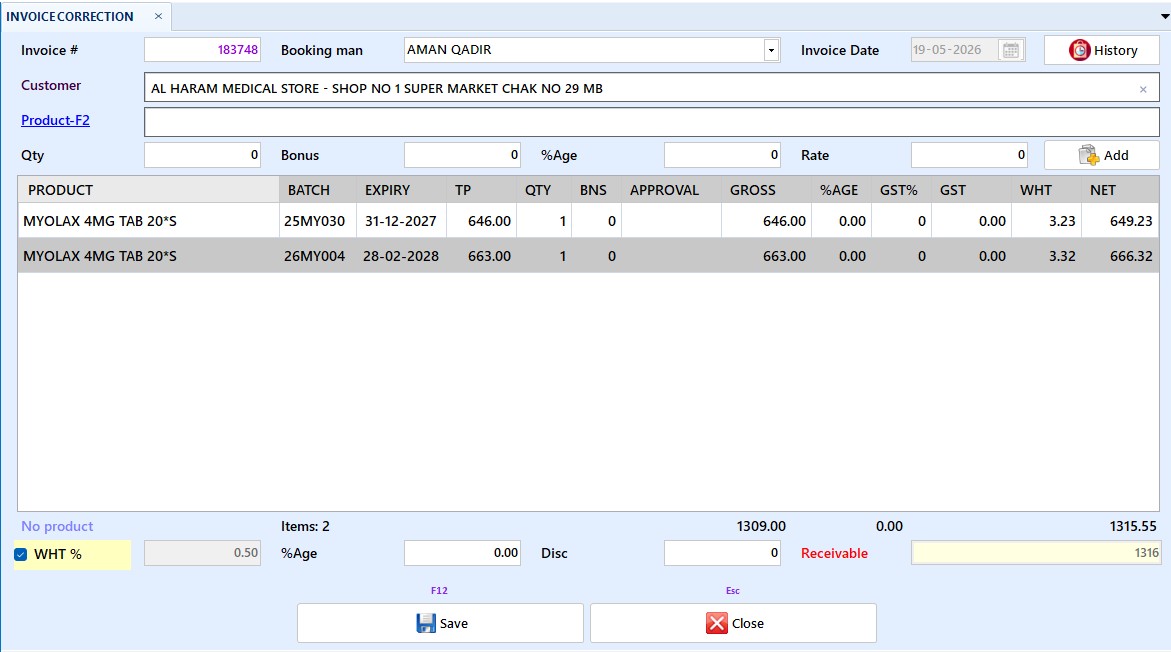
Invoice correction feature has been added to allow users to make necessary adjustments to previously generated invoices.
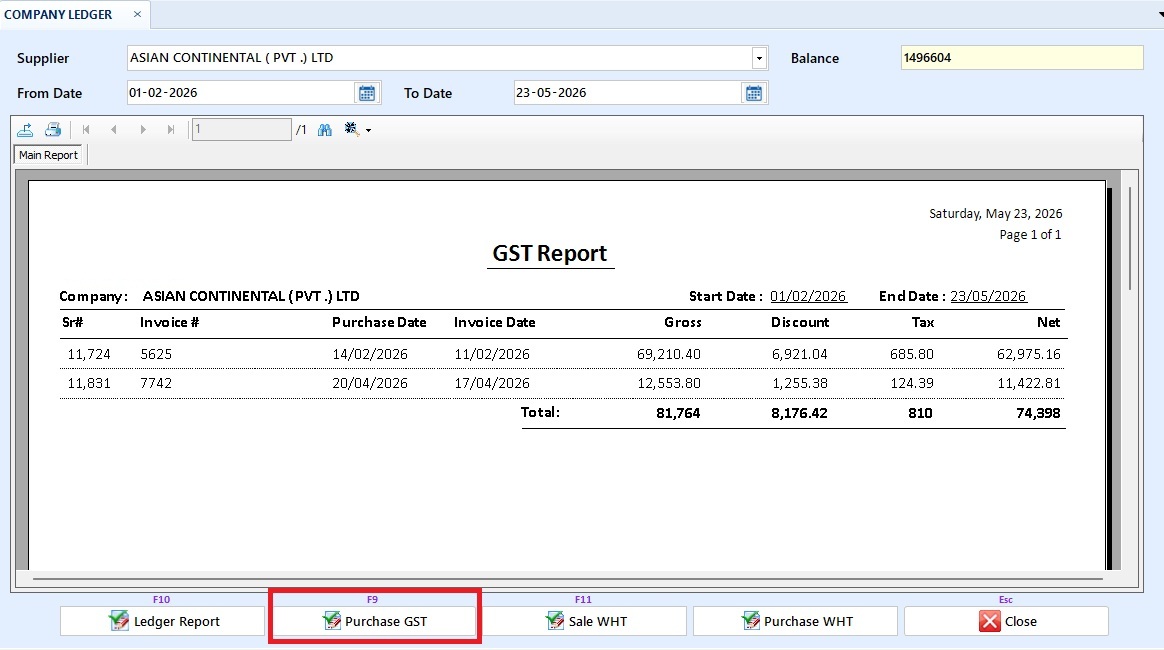
GST Report
New GST report has been added in the system with detailed tax breakdown for FBR submission.
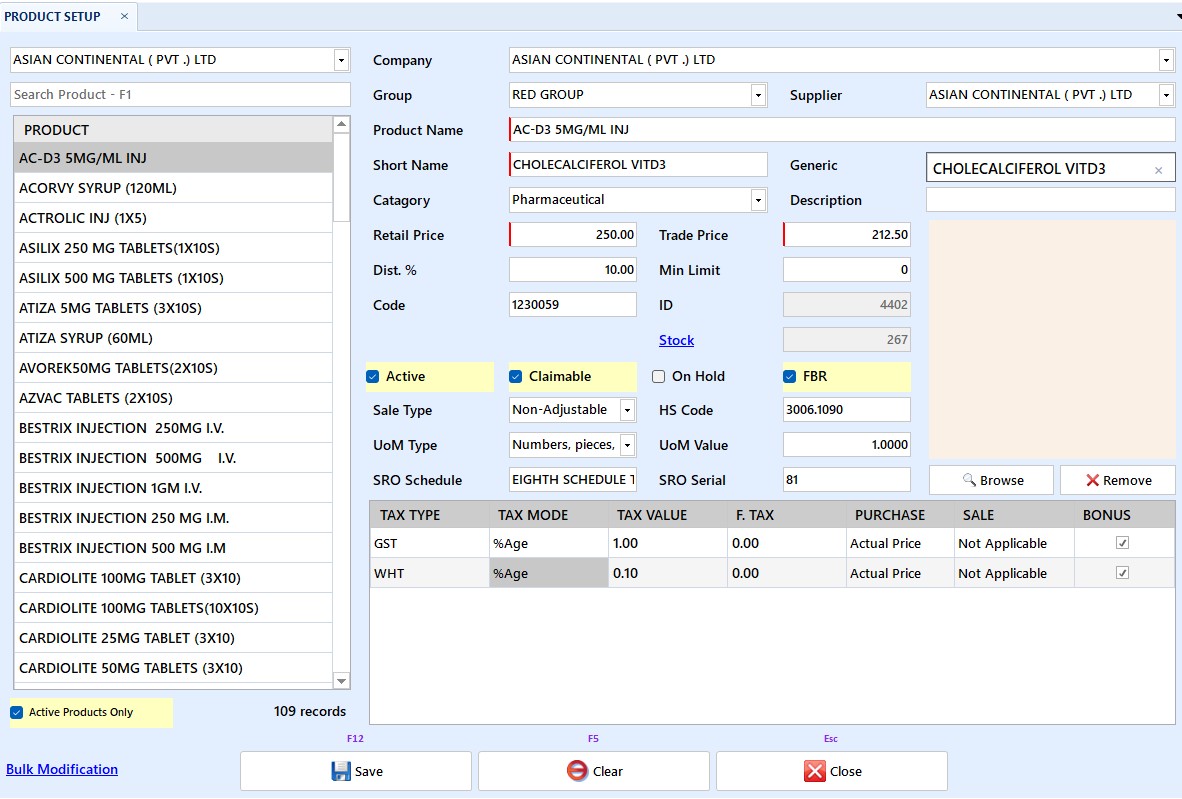
Product Setup screen
Product setup screen has been redesigned with new layout and product image upload option for better
Quickbook (mobile app) New Version
New version of mobile booking app has been launched with new design and product image enablement

Version 2.3
Older Release- Improvement Email Option in Customer Sale Email option has been successfully added directly in the Customer Sale Detail screen for seamless communication.
- Report Annual Sale Multi-Group Multi-company and multi-group filtering options have been integrated into the Annual Sale report.
- Report Day-wise Product Sale Day-wise Product Sale report added under Customer sale detail for granular daily tracking.
- Report Claim Report Multi-company and multi-group filtering options have been integrated into the Claim report
- Improvement Company Contact Persons Add contact persons at the company level with dedicated email routing for Sales & Stock, Town-wise, Customer-wise, and SAS data reports.
- Feature Selective Batch Sale Invoice: A new batch-selective invoice option is now available under Transaction > Sale > Sale Invoice 2.
- Feature Dashboard with Multiple Charts: A brand-new dashboard screen introduced featuring multiple visual charts for real-time business insights.
- Feature Auto Purchase Order: System can now automatically generate Purchase Orders based on the average sale history.
- Feature Sale/Purchase Reasons: Added the ability to specify dedicated reasons for both sales and purchases during transactions.
- Improvement Rep Association at Customer Level: Company representative association has been moved to the customer level for better structural hierarchy.
- Report Townwise Sale Extended Template: A new template is now available in the Townwise sale report to support environments with more than 22 towns.
- Report Invoice Ledger/History: Invoice Ledger and complete History report access added directly inside the Invoice Reprint screen.
- Report Back-dated Sales & Stock: You can now generate reliable Sales and Stock reports for any back-dated period.
- Report Manager-wise Sales & Stock: Added Manager-wise breakdown in Sales and Stock Reports utilizing the 'Today Sale' template.
- Report Representative-wise Town Sale: Track performance effectively with the newly added Representative-wise Town sale report.
- Report Discount Claim by Invoice: Discount claim report generation is now fully supported based on specific Invoice numbers.
- Feature License Based Invoice Templates: Invoice templates are now dynamically selected based on the specific customer's license configuration.
- Feature Product Pictures: Visual identification improved by adding a picture upload option in the Product Setup module.
- Feature Group-wise Discount Claim File: You can now generate and export group-wise discount claim files directly from the Claim screen.
- Feature Product Transfer Option: Easily move existing products from one company or group to a completely new one.
- Feature Invoice Hold Option: Hold option added in both Sale Invoice and Purchase Invoice screens to pause active transactions.
- Feature Special Approval Option: Added specialized approval workflows in the Sales approval and claim report modules.
- Feature Multiple Invoice Templates: Added support for multiple new invoice templates, including thermal printer selection capabilities.
- Feature HS Code Field: Harmonized System (HS) code field added in Product Setup for advanced tax reporting and compliance.
- Report Purchase WHT Report: Purchase Withholding Tax (WHT) Report successfully added into the Company Ledger screen.
- Report Advanced Customer Sales Filters: Customer sales report now supports multi/selective filtering by companies, groups, and products simultaneously.
- Report Stock Report by HS Code: Generate stock reports categorized and filtered by Harmonized System (HS) codes.
- Report Individual Sale Report: Customer sales module now includes a dedicated Individual sale report for deep-dive analysis.
- Report Tax-Inclusive Stock Values: Stock report now includes an option to calculate and display values inclusive of taxes.
- Report Bonus Claim Summary: Added a comprehensive Claim Summary report dedicated to Bonus Claims processing.
- Improvement Company Filter in Packing: Company filtering option is now available in both Packing summary and Reprint Invoice interfaces.
- Improvement Supplier Association: Suppliers can now be directly associated and linked at the individual product level.
- Improvement WHT Calculation Rules: WHT calculation logic moved to company level. No advance tax will be calculated if the company is marked as exempted.
- Improvement Salesman Filters: Salesman filter natively integrated into Net Sale, Profit/Loss reports, and Packing Summary.
- Improvement Customer Selection & Search: Customer selection and search speeds heavily optimized in Sale Invoice and Customer Sale Detail screens.
- Integration FBR Digital Invoice: Full integration accomplished for FBR Digital Invoicing, ensuring state tax compliance automatically.
- Bug Fix Purchase Invoice WHT: Resolved an underlying calculation issue affecting WHT precision on purchase invoices.
- Bug Fix General Optimization: Rolled out numerous underlying bug fixes, stability improvements, and UI refinements across the board.
- Feature Branch Accounting: Added support for multiple branch accounting integration.
- Improvement Login Optimization: Optimized database queries for significantly faster initial login times.
- Bug Fix Thermal Printer Issues: Resolved an intermittent issue with printing blank receipts on thermal printers.
- Report End-of-Year Tax: Introduced a comprehensive end-of-year tax summary report.
- Feature Role Management: New user role management system allowing custom granular permissions.
- Improvement UI Consistency: Enhanced the UI consistency across all setup screens.